Nextion Display with Arduino – Getting Started

This post is an introduction to the Nextion display with the Arduino. We’re going to show you how to configure the display for the first time, download the needed resources, and how to integrate it with the Arduino UNO board. We’ll also make a simple graphical user interface to control the Arduino pins.

Introducing the Nextion Display

Nextion is a Human Machine Interface (HMI) solution. Nextion displays are resistive touchscreens that makes it easy to build a Graphical User Interface (GUI). It is a great solution to monitor and control processes, being mainly applied to IoT applications.

There are several Nextion display modules, with sizes ranging from 2.4” to 7”.

The Nextion has a built-in ARM microcontroller that controls the display, for example it takes care of generating the buttons, creating text, store images or change the background. The Nextion communicates with any microcontroller using serial communication at a 9600 baud rate.

So, it works with any board that has serial capabilities like Arduino, Raspberry Pi, ESP8266, ESP32, and so on.

To design the GUI, you use the Nextion Editor, in which you can add buttons, gauges, progress bars, text labels, and more to the user interface in an easy way. We have the 2.8” Nextion display basic model, that is shown in the following figure.

Getting a Nextion Display

You can grab a Nextion basic model, or a Nextion enhanced model. The Nextion enhanced has new features when compared with the basic model:

  • has a built-in RTC
  • supports saving data to flash
  • supports GPIOs
  • has larger flash capacity and larger CPU clock

The best model for you, will depend on your needs. If you’re just getting started with Nextion, we recommend getting the 3.2” size which is the one used in the Nextion Editor examples (the examples also work with other sizes, but you need to make some changes). Additionally, this is the most used size, which means more open-source examples and resources for this size.

You can check Maker Advisor website to get your Nextion display at the best price – just click the links below:

  • Nextion 2.8” basic model
  • Nextion 3.2” basic model

Installing Nextion Editor

To get started with Nextion, first you need to install Nextion Editor. Go to https://nextion.itead.cc/, select the Resources tab, Download > Nextion Editor and install Nextion Editor. You can either download the .zip file or the .exe file.

Downloading Nextion Libraries

Before getting started, you also need to install the Nextion libraries for Arduino IDE. Follow the next steps to install the library:

  1. Click here to download the Nextion library for Arduino – ITEADLIB_Arduino_Nextion. You should have a .zip folder in your Downloads folder.
  2. Unzip the .zip folder and you should get ITEADLIB-Arduino-Nextion-master folder.
  3. Rename your folder from ITEADLIB_Arduino_Nextion-master to ITEADLIB_Arduino_Nextion.
  4. Move the ITEADLIB_Arduino_Nextion folder to your Arduino IDE installation libraries folder.
  5. Finally, re-open your Arduino IDE.

Configure Library for Arduino UNO

This library is configured for Arduino MEGA2560 by default. To make it work for Arduino Uno, you need to do the following:

1. Open the ITEADLIB_Arduino_Nextion folder

2. There should be a NexConfig.h file – open that file.

3. Comment line 27, so that it stays as follows:

//#define DEBUG_SERIAL_ENABLE

4. Comment line 32:

//#define dbSerial Serial

5. Change line 37, so that you have the following:

#define nexSerial Serial

6. Save the NexConfig.h file.

7. Here’s the final result:

Now, you are ready to start experimenting with the Nextion display with Arduino UNO.

Wiring Nextion Display to the Arduino

Connecting the Nextion display to the Arduino is very straightforward. You just need to make four connections: GND, RX, TX, and +5V. These pins are labeled at the back of your display, as shown in the figure below.

Nextion display pinout

Here’s how you should wire the Nextion display:

NextionWiring to
GNDGND
RXArduino pin 1 (TX)
TXArduino pin 0 (RX)
VCC5V

You can power up the Nextion display directly from the Arduino 5V pin, but it is not recommended. Working with insufficient power supply may damage the display. So, you should use an external power source. You should use a 5V/1A power adaptor with a micro USB cable. Along with your Nextion display, you’ll also receive a USB to 2 pin connector, useful to connect the power adaptor to the display.

Here’s the schematic you need to follow to wire the display to the Arduino.

Project Overview

The best way to get familiar with a new software and a new device is to make a project example. Here we’re going to create a user interface in the Nextion display to control the Arduino pins, and display data.

Here’s the features of the application we’re going to build:

  • The user interface has two pages: one controls two LEDs connected to the Arduino pins, and the other shows data gathered from the DHT11 temperature and humidity sensor;
  • The first page has one button to turn an LED on, another button to turn an LED off, a label showing the LED current state;
  • This first page also has a slider to control the brightness of another LED;
  • The second page shows the current temperature in a text label, and the current humidity in a progress bar;
  • This page has an update button to update to the readings.

Parts Required

Here’s the required parts for this project:

  • 2.8” Nextion display (or 3.2” Nextion display)
  • MicroSD card
  • Arduino UNO – read Best Arduino Starter Kits
  • 2x LEDs
  • DHT11 temperature and humidity sensor
  • 2x 220 Ohm resistors
  • 4.7k Ohm resistor
  • Breadboard
  • Jumper wires

Project Schematic

Here’s the schematic you need to follow to complete this project.

Project Resources

We won’t cover step-by-step how to build the GUI in the Nextion display. But we’ll show you how to build the most important parts, so that you can learn how to actually build the user interface. After following the instructions, you should be able to complete the user interface yourself.

Additionally, we provide all the resources you need to complete this project. Here’s all the resources you need (be aware that you may need to change some settings on the user interface to match your display size):

  • .HMI file (this file can be imported into the Nextion Editor to edit the GUI);
  • background image used in the user interface should also be in the project folder;
  • .TFT file (this file should be uploaded to the Nextion display, this is the file that the display runs);
  • .ino file (this is the file you should upload to your Arduino board).


Nextion Editor General Overview

Here’s a quick overview of the different sections of the Nextion Editor.

  1. Main Menu
  2. Canvas – this is where you add your components to build the User Interface.
  3. Toolbox – this is where you have a wide variety of components you can add to the user interface, like pictures, progress bar, buttons, sliders, and much more.
  4. Picture/Fonts list – this shows the fonts and pictures imported to your projects. Here you can also add new fonts and pictures.
  5. Page area – you can manage your pages here, like add more pages, copy and delete pages.
  6. Attributes area – this part shows your component’s attributes. You can edit the component’s attributes here.
  7. Compiler output window – this will show any errors occurred during compiling.
  8. Event window – here you can add code to be run when an event is met.

Creating a New Project in Nextion Editor

Open Nextion Editor and go to File > New to create a new file. Give it a name and save it. Then, a window pops up to chose your Nextion model, as show in the figure below.

Or you can import the .HMI file for this project.

If you select the Display tab, you can also set the display orientation.

For this example, we’ve selected Horizontal.

After selecting your display and the orientation, just click the Ok button. A new project on the Nextion Editor should open.

Adding a Background Image

We’ll start by adding a background image. To use an image as a background, it should have the exact same dimensions as your Nextion display. We’re using the 2.8” display, so the background image needs to be 240×320 pixels. Check your display dimensions and edit your background image accordingly. As an example, we’re using the following image:

After having your background image with the right dimensions, follow the next instructions:

1. In the bottom left corner of the Nextion display, there’s a window for fonts and pictures. Select the Picture tab.

2. Click the (+) button and select your background image. The image will be added to the pictures list and it will be given an id. In this case it is 0.

3. Go to the toolbox, and click on the Picture component. It will be automatically added to your display area.

4. Having that component selected, you should see its attribute in the attribute area.  You can double click on the attributes to edit them. Double-click on the pic attribute to select the picture you want. You must write “0” which is the index of the picture you want, or select the image on the new window that pops up. After writing “0”, you actually need to hit ENTER to save the changes.

Adding Fonts

To write text on the display, you need to generate a font in the Nextion Editor. Go to Tools > Font Generator. A new window should open.

Here you can select the font height, type, spacing and if you want it to be bold or not. Give it a name and click the Generate font button. After that, save the .zi file and add the generator font by clicking yes.

The font will be added to the Fonts library at the left bottom corner and it will be given an index. As this is your first font, it will have the index 0.

Note: At the time of writing this instructions there is an issue with font types. Whatever font type you chose, it will always look the same. Still, you can edit the font size and if it is bold or not.

Adding text labels, sliders and buttons

At this moment, you can start adding components to the display area. For our project, drag three buttons, two labels and one slider, as shown in the figure below. Edit their looks as you like.

All components have an attribute called objname. This is the name of the component. Give good names to your components because you’ll need them later for the Arduino code. Also note that each component has one id number that is unique to that component in that page. The figure below shows the objname and id for the slider.

You can edit the components the way you want, but make sure to edit the slider maxval to 255, so that it works with the Arduino code we’ll be using.

Touchable components

You should trigger an event for the touchable components (the buttons and the slider) so that the Arduino knows that a component was touched. You can trigger events when you press or when you release a component.

Here we’re going to trigger an event when the touch is released. That event will be simply sending the ID of the component that was touched.

To do that, select one of the buttons, and in the event window, select the Touch Release Event tab, and put a tick on the Send Component ID option. Repeat this process for the other button, and the slider.

Creating and Navigating to a New Page

Adding more pages to your GUI is really simple. On the top right corner, in the Page area, select the Add button to add a new page. A new page will be created. In this case, page1.

To navigate to one page to another, we’ve added a button in each page, at the bottom right corner – in this case it is called bNext.

To make this button redirect to page1, you need to add the following to the Event window, in the user code section (as highlighted in red below).

If you want to redirect to another page, you just have to modify the User Code with the number of the page.

Our second page will display data from the DHT11 temperature and humidity sensor. We have several labels to hold the temperature in Celsius, the temperature in Fahrenheit, and the humidity. We also added a progress bar to display the humidity and an UPDATE button to refresh the readings. The bBack button redirects to page0.

Notice that we have labels to hold the units like “ºC”, “ºF” and “%”, and empty labels that will be filled with the readings when we have our Arduino code running.

Testing the Interface in the Simulator

You can test your interface in the simulator. For that, you need to click on the debug button at the main menu.

A new window should open.

In that window you can click on the buttons and see what happens. You should be able to swap between pages by clicking the corresponding buttons. You should also see the data returned when you click each button as highlighted in red in the figure above.

Compiling and Uploading code to the Nextion Display

To upload your project to the Next display, follow the next steps:

1. Click the Compile button in the main menu;

2. Insert the microSD card on your computer;

3. Go to File > Open Build Folder;

4. Copy the .TFT file corresponding to the file you’re currently working;

5. Paste that file in the microSD card (note: the microSD card should have been previously formatted as FAT32);

6. Insert the microSD card on the Nextion display and plug power.

7. You should see a message on the display saying the code is being uploaded.

8. When it is ready, it should display the following message:

9. Remove the power from the Nextion display, and unplug the microSD card.

10. Apply power again, and you should see the interface you’ve built in the Nextion Editor on your Nextion display.

Writing the Arduino Code

Once the GUI is ready, you need to write the Arduino code so that the Nextion can interact with the Arduino and vice-versa. Writing code to interact with the Nextion display is not straightforward for beginners, but it also isn’t as complicated as it may seem.

A good way to learn how to write code for the Arduino to interact with the Nextion display is to go to the examples folder in the Nextion library folder and explore. You should be able to copy and paste code to make the Arduino do what you want.

The first thing you should do is to take note of your components in the GUI that will interact with the Arduino and take note of their ID, names and page. Here’s a table of all the components the code will interact to (your components may have a different ID depending on the order you’ve added them to the GUI).

ObjnameTypePage IDID
tStatetext04
bOnbutton02
bOffbutton03
h0slider05
tSlidertext06
tTempCtext15
tTempFtext14
jHumidityProgress bar18
tHumiditytext19
bUpdatebutton110

Below you can find the code you should upload to your Arduino board. Make sure you have the right board and COM port select.

You also need to have the Adafruit_DHT library installed. 

Note: make sure you remove the TX and RX connections when uploading code.

/*
 * Gnd_To_Vcc
 * 
 */

#include "Nextion.h"

#include "DHT.h"
#define DHTPIN 4     // what digital pin we're connected to

// Uncomment whatever type you're using!
#define DHTTYPE DHT11   // DHT 11
//#define DHTTYPE DHT22   // DHT 22  (AM2302), AM2321
//#define DHTTYPE DHT21   // DHT 21 (AM2301)

// Initialize DHT sensor.
DHT dht(DHTPIN, DHTTYPE);

// LED pins
const int led1 = 8;
const int led2 = 9;

// Declare your Nextion objects - Example (page id = 0, component id = 1, component name = "b0") 
NexText tState = NexText(0, 4, "tState"); 
NexButton bOn = NexButton(0, 2, "bOn");
NexButton bOff = NexButton(0, 3, "bOff");
NexSlider h0 = NexSlider(0, 5, "h0");
NexText tSlider = NexText(0, 6, "tSlider");
NexText tTempC = NexText(1, 5, "tTempC");
NexText tTempF = NexText(1, 4, "tTempF");
NexProgressBar jHumidity = NexProgressBar(1, 8, "jHumidity");
NexText tHumidity = NexText(1, 9, "tHumidity");
NexButton bUpdate = NexButton(1,10, "bUpdate");

// Register a button object to the touch event list.  
NexTouch *nex_listen_list[] = {
  &bOn,
  &bOff,
  &h0,
  &bUpdate,
  NULL
};
 
/*
 * Button bOn component pop callback function. 
 * When the ON button is released, the LED turns on and the state text changes. 
 */
void bOnPopCallback(void *ptr) {
  tState.setText("State: on");
  digitalWrite(led1, HIGH);
}

/*
 * Button bOff component pop callback function. 
 * When the OFF button is released, the LED turns off and the state text changes. 
 */
void bOffPopCallback(void *ptr) {
  tState.setText("State: off");
  digitalWrite(led1, LOW);
}

/*
 * Slider h0 component pop callback function. 
 * When the slider is released, the LED brightness changes and the slider text changes. 
 */
void h0PopCallback(void *ptr) {
  uint32_t number = 0;
  char temp[10] = {0};
  // change text with the current slider value
  h0.getValue(&number);
  utoa(number, temp, 10);
  tSlider.setText(temp);
  // change LED brightness
  analogWrite(led2, number); 
}

/*
 * Button bUpdate component pop callback function. 
 * When the UPDATE button is released, the temperature and humidity readings are updated. 
 */
void bUpdatePopCallback(void *ptr) {
  // Reading temperature or humidity takes about 250 milliseconds!
  // Sensor readings may also be up to 2 seconds 'old' (its a very slow sensor)
  float h = dht.readHumidity();
  // Read temperature as Celsius (the default)
  float t = dht.readTemperature();
  // Read temperature as Fahrenheit (isFahrenheit = true)
  float f = dht.readTemperature(true);

  // Check if any reads failed and exit early (to try again).
  if (isnan(h) || isnan(t) || isnan(f)) {
    return;
  }
  // Update temperature in Celsius
  static char temperatureCTemp[6];
  dtostrf(t, 6, 2, temperatureCTemp);
  tTempC.setText(temperatureCTemp);

  // Update humidity percentage text and progress bar
  char hTemp[10] = {0}; 
  utoa(int(h), hTemp, 10);
  tHumidity.setText(hTemp);
  jHumidity.setValue(int(h));

  // Update temperature in Fahrenheit
  static char temperatureFTemp[6];
  dtostrf(f, 6, 2, temperatureFTemp);
  tTempF.setText(temperatureFTemp);
}

void setup(void) {    
  dht.begin();
  Serial.begin(9600);
    
  // You might need to change NexConfig.h file in your ITEADLIB_Arduino_Nextion folder
  // Set the baudrate which is for debug and communicate with Nextion screen
  nexInit();

  // Register the pop event callback function of the components
  bOn.attachPop(bOnPopCallback, &bOn);
  bOff.attachPop(bOffPopCallback, &bOff);
  h0.attachPop(h0PopCallback);
  bUpdate.attachPop(bUpdatePopCallback, &bUpdate);
    
  // Set LEDs as outputs
  pinMode(led1, OUTPUT);
  pinMode(led2, OUTPUT);
}

void loop(void) {   
  /*
   * When a pop or push event occured every time,
   * the corresponding component[right page id and component id] in touch event list will be asked.
   */
  nexLoop(nex_listen_list);
}

Continue reading the post to learn how the code works.

Including needed libraries

First, you include the Nextion and the DHT libraries.

#include "Nextion.h"
#include "DHT.h"

The DHT sensor will be connected to the Arduino digital pin 4.

#define DHTPIN 4

Then, you should select the DHT type you’re using:

// Uncomment whatever type you're using!
#define DHTTYPE DHT11 // DHT 11
//#define DHTTYPE DHT22 // DHT 22 (AM2302), AM2321
//#define DHTTYPE DHT21 // DHT 21 (AM2301)

And initialize the DHT sensor

DHT dht(DHTPIN, DHTTYPE);

After that, you define led1 and led2. These variables refer to the digital pins 8 and 9 respectively. (led 1 will be controlled with the ON and OFF buttons of the user interface, and led2 brightness will be controlled using the slider).

const int led1 = 8;
const int led2 = 9;

Declaring Nextion Objects

You need to declare all your Nextion objects as follows:

NexText tState = NexText(0, 4, "tState"); 
NexButton bOn = NexButton(0, 2, "bOn");
NexButton bOff = NexButton(0, 3, "bOff");
NexSlider h0 = NexSlider(0, 5, "h0");
NexText tSlider = NexText(0, 6, "tSlider");
NexText tTempC = NexText(1, 5, "tTempC");
NexText tTempF = NexText(1, 4, "tTempF");
NexProgressBar jHumidity = NexProgressBar(1, 8, "jHumidity");
NexButton bUpdate = NexButton(1,10, "bUpdate");
NexText tHumidity = NexText(1, 9, "tHumidity");

Here you use the page ID, the component ID and their name – just check the table above with all the components. To define a text you use NexText, to define a button you use NexButton, for a slider you use NexSlider and for the progress bar you use NexProgressBar.

Next, you should add in the following snippet all the touchable components that should trigger events on the Arduino.

NexTouch *nex_listen_list[] = {
    &bOn,
    &bOff,
    &h0,
    &bUpdate,
    NULL
};

Creating Callback Functions

After that, you should create callback functions that will be triggered when you touch the corresponding components.

The following function will be triggered when you release the touch from the bOn button:

void bOnPopCallback(void *ptr) {
    tState.setText("State: on");
    digitalWrite(led1, HIGH);
}

This function will set the led1 to HIGH, as well as update the tState label with the text “State: on”. Updating text labels is as simple as using setText().

The bOff button works in a similar way:

void bOffPopCallback(void *ptr) {
    tState.setText("State: off");
    digitalWrite(led1, LOW);
}

For the slider (h0), you have the following function that writes the current slider position on the tSlider label and sets led2 brightness accordingly:

void h0PopCallback(void *ptr) {
    uint32_t number = 0;
    char temp[10] = {0};
    h0.getValue(&number);
    utoa(number, temp, 10);
    tSlider.setText(temp);
    analogWrite(led2, number); 
}

Finally, you need a function for the bUpdate (the update button). When you click this button the DHT temperature and humidity sensor reads temperature and humidity and displays them on the corresponding labels, as well as the humidity on the progress bar. That is the bUpdatePopCallback() function.

Inside that function, the following snipet reads temperature and humidity:

float h = dht.readHumidity();
 // Read temperature as Celsius (the default)
 float t = dht.readTemperature();
 // Read temperature as Fahrenheit (isFahrenheit = true)
 float f = dht.readTemperature(true);

// Check if any reads failed and exit early (to try again).
 if (isnan(h) || isnan(t) || isnan(f)) {
 //Serial.println("Failed to read from DHT sensor!");
 return;
 }

The next piece writes the temperature in celcius on the tTempC label

static char temperatureCTemp[6];
dtostrf(t, 6, 2, temperatureCTemp);
tTempC.setText(temperatureCTemp);

In a similar way, to update the temperature in Fahrenheit:

static char temperatureFTemp[6];
dtostrf(f, 6, 2, temperatureFTemp);
tTempF.setText(temperatureFTemp);

To update the humidity label as well as the progress bar:

char hTemp[10] = {0};
utoa(int(h), hTemp, 10);
tHumidity.setText(hTemp);
jHumidity.setValue(int(h));

To set the value of the progress bar you simply use setValue().

setup()

In the setup(), you need to attach the functions created to the corresponding events. For example, when you click on the bOn button, the bOnPopCallback function will be triggered.

    bOn.attachPop(bOnPopCallback, &bOn);
    bOff.attachPop(bOffPopCallback, &bOff);
    h0.attachPop(h0PopCallback);
    bUpdate.attachPop(bUpdatePopCallback, &bUpdate);

loop()

The loop is as simple as the following:

void loop(void) { 
    nexLoop(nex_listen_list);
}

When an event occurs, the corresponding function will be triggered.

Demonstration

With the User Interface built and the code on the Arduino, you should be able to control the Arduino pins from the Nextion display.

Tap the On and Off buttons to turn on and off led1 and move the slider to control led2 brightness.

On the second screen, tap the update button to update with the latest sensor readings.

Wrapping up

In this post we’ve introduced you to the Nextion display. We’ve also created a simple application user interface in the Nextion display to control the Arduino pins. The application built is just an example for you to understand how to interface different components with the Arduino – we hope you’ve found the instructions as well as the example provided useful.

In our opinion, Nextion is a great display that makes the process of creating user interfaces simple and easy. Although the Nextion Editor has some issues and limitations it is a great choice for building interfaces for your electronics projects. We have a project on how to create a Node-RED physical interface with the Nextion display and an ESP8266 to control outputs. Feel free to take a look.

What projects would you like to see using the Nextion display? Write a comment down below.

Thanks for reading.

What’s the Best LED Strip For Your Project?

LED strips are just amazing, and there are a wide variety of LED strips to chose from. Do you know what is the best LED strip for your project? Here we explain the main differences between several types of LED strips and their features.

Introducing LED strips

When it comes to LED strips, the main difference is between analog and digital LED strips. Analog and digital LED strips work differently and produce different results. So, whether you need an analog or a digital LED strip will depend on the project you want to build.

Besides being analog or digital, LED strips also vary in a number of aspects:

  • LED density: this means how much LEDs the strip has per meter. You can find a wide variety of LED densities since 30, 60, 72 , 120 LEDs per meter and other options.
  • Waterproof or not. The LED strips can be waterproof or not. The waterproof LED strips are coated in a clear silicon as the strip shown below.

The waterproof version is easier to work with as they have more weight, are more flexible and can be easily placed outside. However you should be aware that these shouldn’t be placed inside pools, or in places where they will be subject to agressive weather conditions.

The non waterproof strips are lighter, so it is easier if you want to hang them on the bottom of something with tape. The image below shows an example of a non waterproof LED strip.

  • Power supply: Most LEDs strips are commonly powered with a 5V, or 12V or 24V power supply. The current needed will depend on how long is your LED strip and on the LED density. The voltage supply is usually marked on the strip, as you can see in the figure below. If not, make sure you check the strip’s datasheet to find out.

Usually, LED strips come on reels with several meters long and can be cut into small segments.

There are cutting marks along the strip marked with a scissors icon that shows you where you can cut your strip as shown in the figure below. This strip has segments of three LEDs.


Finding the right power supply

Finding the right power supply for your strip is important to keep your strip with an appropriate brightness and to make it work correctly. To find the appropriate power supply you need to know:

  • Operating voltage: most LED strips operate with 5V, or 12V or 24V power supply. Check the LED strip’s datasheet to find out – some strips have the operating voltage marked on the strip cutting marks.
  • LED density – this means you need to know how much LEDs you have per meter
  • Length of the strip – you need to know how long is your strip to find out how much LEDs will have
  • Current draw per each LED – check the datasheet to find out.

To find out the current you just need to multiply:

Current needed = LED density x length of strip x current draw per each LED

Analog LED Strips

When it comes to analog strips, there are analog RGB LED strips and monocolor LED strips.

Analog Monocolor LED Strips

Monocolor LED strips only produce one color. These strips are really easy to wire, they just have two terminals: GND and VCC as shown in the strip below.

You just apply power to the strip, and the LEDs light up. The following figure shows an example of a monocolor LED strip. This strip only produces white color.

Analog RGB LED Strips

Analog LED strips have their LEDs wired in parallel. The whole strip works as a giant RGB LED. So, you can light up your whole strip in many different colors, but you can’t control LEDs individually. This means your strip can only be one color at a time. This type of LED strips are cheaper than the digital ones and easier to use.

Analog strips are more used in decoration purposes. But it really depends on what you intend to do. We use an analog strip to give some color to our recording setup. In the following figure, the background color was set to cyan.

Wiring Analog Strips

These strips have four pins you need to connect. One red channel, one green channel, a blue channel and power.
To produce different colors you just need to vary the amount of power to each channel.

This is easy to control with any microcontroller using PWM. Whether is using a Raspberry Pi, an Arduino or an ESP8266, you can easily control the LED strip brightness and color.

One meter of your analog LED strip can draw approximately 1A per LED pin when all red green and blue LEDs are at full brightness (which produces white).

You need a driver circuit to boost the power – add a transistor amplifier in each control line. For example, you can use N-channel MOSFETs like the IRLB8721 that work with 3.3V and 5V logic. So, they are suitable to use with your Arduino or ESP8266.

Then, you can control the strip with PWM as you would do to control a single RGB LED. To find out how to control an RGB LED with the Arduino you can read: How do RGB LEDs work?

You can check how we’ve built a mood light using an analog RGB LED strip: $10 DIY WiFi RGB LED Mood Light with ESP8266.

Digital LED Strips

When it comes to digital LED strips, you can control each LED individually – these are also called addressable LED strips. You can chose each LED color, its brightness and when they should be on and off. This allows you to do all sorts of crazy and awesome effects. Our favorite addressable RGB LED strip is the WS2812B. Here’s some of the effects you can do with it:

The WS2812B LEDs have an IC built right into the LED – take a look at the figure below.

This allows a communication via a one-wire interface. This means that you can control lots of LEDs using just one digital pin of your microcontroller. These LED strips just have three pins: VCCGND and data. VCC and GND are used to apply power to the strip and the data pin should be connected to your microcontroller.

This strip requires a 5V data signal, so you should have no problem controlling it through an arduino digital pin. However, if you want to control your strip using Raspberry Pi, or ESP8266 that send signals at 3.3V, you should use a logic level converter module that converts 3.3V data signal into a 5 V data signal.

Libraries

There are libraries that make it really easy to control the strip and make all sorts of crazy effects.

If you want to learn how to control this strip with Arduino and make awesome light effects,  you can read: Guide for WS2812B Addressable RGB LED Strip with Arduino.

We’ve added a rainbow effect to our monitor stand using the WS2812B addressable RGB LED strip.

Where to Buy?

Now that you know what is the best LED strip for your project, you can go to Maker Advisor to find your strip’s best price.

  • Analog Monocolor LED Strip
  • Analog RGB LED Strip
  • WS2812B addressable RGB LED Strip

Wrapping up

In this post we’ve shown you the main differences between the various types of LED strips out there.

Now, it is easier for you to pick up the right strip for your specific project.

Here’s some related tutorials you may also like:

We hope you’ve found this post useful.

Thanks for reading.

Guide for WS2812B Addressable RGB LED Strip with Arduino

This post is about the WS2812B LED strip, which is an addressable RGB LED strip. The information in this post also works with other similar LED strips, such as strips of the WS28XX family, Neopixel strip and others.

Introducing the WS2812B LED Strip

The WS2812B addressable LED strip comes in several models that differ in size, sealant or LED density. Choose the one that best fits your purposes. 

Where to buy?

You can visit Maker Advisor and find the WS2812B RGB LED Strip best price.

In the following figure you can see my WS2812B LED strip. It is 5 meters long and the LEDs are enclosed in a weatherproof silicone. So, they can be left outside at the rain and dust without any problem.

In my opinion, this is the coolest type of LED strips. You can control the brightness and the color of each LED individually, which allows you to produce amazing and complex effects in a simple way.

This LED strip is made by WS2812B LEDs wired in series. These LEDs have an IC built right into the LED. This allows a communication via a one-wire interface. This means that you can control lots of LEDs using just one digital pin of your Arduino. 

In the following figure you can see the chip inside the LED. The LED is an RGB LED and works like so.

This kind of strips are very flexible and can be cut to any length you want. As you can see, the strip is divided into segments, and each segment contains one RGB LED.  

You can adjust its size by cutting the strip with a scissors in the right place (the proper places to cut the strip are marked).

These strips come with  connectors  at each end. I’ve decided to cut the connectors, and solder header pins. It’s more handy if you want to connect the strip to an Arduino or to a breadboard.

Powering the WS2812B LED Strip

The LED strip should be powered using a 5V power source. At 5V, each LED draws about 50mA, when set to its full brightness.  This means that for every 30 LEDs, the strip may draw as much as 1.5 A. Make sure you select a power source that matches the strip’s needs. An AC to DC power adapter that provides 5V and 2A should do the job:

  • 5V 2A power adapter

If you use an external power source, don’t forget to connect the power source ground to the Arduino ground.

Schematics

In this example, the WS2812B LED strip will be powered using the 5V Arduino pin. In my case, I’m controlling 14 LEDs. If you want to control many LEDs, you’ll need to use an external power source.

Useful tips:

  • Connect a capacitor with a capacitance between 100uF and 1000uF from power to ground to smooth out the power supply.
  • Add a 220 or 470 Ohm resistor between the Arduino digital output pin and the strip data input pin to reduce noise on that line.
  • Make your wires between the arduino, power supply and the strip as short as possible to minimize voltage loss.
  • If your strip gets damaged and doesn’t work, check if the first LED is broken. If so, cut it, resolder the header pins, and it should work again.

Code

To control the WS2812B LED strip, you’ll need to download the FastLED library.

Installing the FastLED library

  1. Click here to download the FastLED library. You should have a .zip folder in your Downloads folder
  2. Unzip the .zip folder and you should get FastLED-master folder
  3. Rename your folder from FastLED-master to FastLED
  4. Move the FastLED folder to your Arduino IDE installation libraries folder
  5. Finally, re-open your Arduino IDE

After installing the needed library, upload the following code to your Arduino board (this is an example sketch provided in the library examples folder). Go to File > Examples > FastLED > ColorPalette or copy the code below.

#include <FastLED.h>

#define LED_PIN     5
#define NUM_LEDS    14
#define BRIGHTNESS  64
#define LED_TYPE    WS2811
#define COLOR_ORDER GRB
CRGB leds[NUM_LEDS];

#define UPDATES_PER_SECOND 100

// This example shows several ways to set up and use 'palettes' of colors
// with FastLED.
//
// These compact palettes provide an easy way to re-colorize your
// animation on the fly, quickly, easily, and with low overhead.
//
// USING palettes is MUCH simpler in practice than in theory, so first just
// run this sketch, and watch the pretty lights as you then read through
// the code.  Although this sketch has eight (or more) different color schemes,
// the entire sketch compiles down to about 6.5K on AVR.
//
// FastLED provides a few pre-configured color palettes, and makes it
// extremely easy to make up your own color schemes with palettes.
//
// Some notes on the more abstract 'theory and practice' of
// FastLED compact palettes are at the bottom of this file.


CRGBPalette16 currentPalette;
TBlendType    currentBlending;

extern CRGBPalette16 myRedWhiteBluePalette;
extern const TProgmemPalette16 myRedWhiteBluePalette_p PROGMEM;


void setup() {
    delay( 3000 ); // power-up safety delay
    FastLED.addLeds<LED_TYPE, LED_PIN, COLOR_ORDER>(leds, NUM_LEDS).setCorrection( TypicalLEDStrip );
    FastLED.setBrightness(  BRIGHTNESS );
    
    currentPalette = RainbowColors_p;
    currentBlending = LINEARBLEND;
}


void loop()
{
    ChangePalettePeriodically();
    
    static uint8_t startIndex = 0;
    startIndex = startIndex + 1; /* motion speed */
    
    FillLEDsFromPaletteColors( startIndex);
    
    FastLED.show();
    FastLED.delay(1000 / UPDATES_PER_SECOND);
}

void FillLEDsFromPaletteColors( uint8_t colorIndex)
{
    uint8_t brightness = 255;
    
    for( int i = 0; i < NUM_LEDS; i++) {
        leds[i] = ColorFromPalette( currentPalette, colorIndex, brightness, currentBlending);
        colorIndex += 3;
    }
}


// There are several different palettes of colors demonstrated here.
//
// FastLED provides several 'preset' palettes: RainbowColors_p, RainbowStripeColors_p,
// OceanColors_p, CloudColors_p, LavaColors_p, ForestColors_p, and PartyColors_p.
//
// Additionally, you can manually define your own color palettes, or you can write
// code that creates color palettes on the fly.  All are shown here.

void ChangePalettePeriodically()
{
    uint8_t secondHand = (millis() / 1000) % 60;
    static uint8_t lastSecond = 99;
    
    if( lastSecond != secondHand) {
        lastSecond = secondHand;
        if( secondHand ==  0)  { currentPalette = RainbowColors_p;         currentBlending = LINEARBLEND; }
        if( secondHand == 10)  { currentPalette = RainbowStripeColors_p;   currentBlending = NOBLEND;  }
        if( secondHand == 15)  { currentPalette = RainbowStripeColors_p;   currentBlending = LINEARBLEND; }
        if( secondHand == 20)  { SetupPurpleAndGreenPalette();             currentBlending = LINEARBLEND; }
        if( secondHand == 25)  { SetupTotallyRandomPalette();              currentBlending = LINEARBLEND; }
        if( secondHand == 30)  { SetupBlackAndWhiteStripedPalette();       currentBlending = NOBLEND; }
        if( secondHand == 35)  { SetupBlackAndWhiteStripedPalette();       currentBlending = LINEARBLEND; }
        if( secondHand == 40)  { currentPalette = CloudColors_p;           currentBlending = LINEARBLEND; }
        if( secondHand == 45)  { currentPalette = PartyColors_p;           currentBlending = LINEARBLEND; }
        if( secondHand == 50)  { currentPalette = myRedWhiteBluePalette_p; currentBlending = NOBLEND;  }
        if( secondHand == 55)  { currentPalette = myRedWhiteBluePalette_p; currentBlending = LINEARBLEND; }
    }
}

// This function fills the palette with totally random colors.
void SetupTotallyRandomPalette()
{
    for( int i = 0; i < 16; i++) {
        currentPalette[i] = CHSV( random8(), 255, random8());
    }
}

// This function sets up a palette of black and white stripes,
// using code.  Since the palette is effectively an array of
// sixteen CRGB colors, the various fill_* functions can be used
// to set them up.
void SetupBlackAndWhiteStripedPalette()
{
    // 'black out' all 16 palette entries...
    fill_solid( currentPalette, 16, CRGB::Black);
    // and set every fourth one to white.
    currentPalette[0] = CRGB::White;
    currentPalette[4] = CRGB::White;
    currentPalette[8] = CRGB::White;
    currentPalette[12] = CRGB::White;
    
}

// This function sets up a palette of purple and green stripes.
void SetupPurpleAndGreenPalette()
{
    CRGB purple = CHSV( HUE_PURPLE, 255, 255);
    CRGB green  = CHSV( HUE_GREEN, 255, 255);
    CRGB black  = CRGB::Black;
    
    currentPalette = CRGBPalette16(
                                   green,  green,  black,  black,
                                   purple, purple, black,  black,
                                   green,  green,  black,  black,
                                   purple, purple, black,  black );
}


// This example shows how to set up a static color palette
// which is stored in PROGMEM (flash), which is almost always more
// plentiful than RAM.  A static PROGMEM palette like this
// takes up 64 bytes of flash.
const TProgmemPalette16 myRedWhiteBluePalette_p PROGMEM =
{
    CRGB::Red,
    CRGB::Gray, // 'white' is too bright compared to red and blue
    CRGB::Blue,
    CRGB::Black,
    
    CRGB::Red,
    CRGB::Gray,
    CRGB::Blue,
    CRGB::Black,
    
    CRGB::Red,
    CRGB::Red,
    CRGB::Gray,
    CRGB::Gray,
    CRGB::Blue,
    CRGB::Blue,
    CRGB::Black,
    CRGB::Black
};


// Additionl notes on FastLED compact palettes:
//
// Normally, in computer graphics, the palette (or "color lookup table")
// has 256 entries, each containing a specific 24-bit RGB color.  You can then
// index into the color palette using a simple 8-bit (one byte) value.
// A 256-entry color palette takes up 768 bytes of RAM, which on Arduino
// is quite possibly "too many" bytes.
//
// FastLED does offer traditional 256-element palettes, for setups that
// can afford the 768-byte cost in RAM.
//
// However, FastLED also offers a compact alternative.  FastLED offers
// palettes that store 16 distinct entries, but can be accessed AS IF
// they actually have 256 entries; this is accomplished by interpolating
// between the 16 explicit entries to create fifteen intermediate palette
// entries between each pair.
//
// So for example, if you set the first two explicit entries of a compact 
// palette to Green (0,255,0) and Blue (0,0,255), and then retrieved 
// the first sixteen entries from the virtual palette (of 256), you'd get
// Green, followed by a smooth gradient from green-to-blue, and then Blue.

You have to change NUM_LEDS variable to the number of LEDs in your LED strip. In our example, the LED strip is 14 LEDs long.

#define NUM_LEDS 14

If you want to use another pin of the Arduino to control the LED strip, you need to change the LED_PIN variable:

#define LED_PIN 5

Demonstration

In the end, this is what you’ll have. Amazing effects like this one:

And this one:

And this one:

And so on (…)

Using an LED Strip Case

These LED strips usually come with a removable tape, so that you can stick them wherever you want. The problem is that they don’t stick very well, so chances are that you’ll find your strip in the floor the following day.

The solution: I found this strip case that diffuses the light well and you can screw it to a shelf, for example, if you want a permanent solution.

Wrapping Up

This post is an introduction to the addressable RGB LED strip with the Arduino. We’ve just experimented with the library example. You should modify the example to only display the effects you want. We hope you’ve found this guide useful.

If like this post, you may also like:

Thanks for reading.

Decoding and Encoding JSON with Arduino or ESP8266

In this blog post you’re going to learn how to decode (parse a JSON string) and encode (generate a JSON string) with the ArduinoJson library using the Arduino with the Ethernet shield. This guide also works with the ESP8266 and ESP32 Wi-Fi modules with small changes.

Important: this tutorial is only compatible with the ArduinoJSON library 5.13.5.

What is JSON?

JSON stands for JavaScript Object Notation. JSON is a lightweight text-based open standard design for exchanging data.

JSON is primarily used for serializing and transmitting structured data over network connection – transmit data between a server and a client. It is often used in services like APIs (Application Programming Interfaces) and web services that provide public data.

JSON syntax basics

In JSON, data is structured in a specific way. JSON uses symbols like { } , : ” ” [ ] and it has the following syntax:

  • Data is represented in key/value pairs
  • The colon (:) assigns a value to key
  • key/value pairs are separated with commas (,)
  • Curly brackets hold objects ({ })
  • Square brackets hold arrays ([ ])

For example, to represent data in JSON, the key/value pairs come as follows:

{"key1":"value1", "key2":"value2", "key3":"value3"}

JSON examples

In a real world example, you may want structure data about a user:

{"name":"Rui", "country": "Portugal", "age":24}

Or in a IoT project, you may want to structure data from your sensors:

{"temperature":27.23, "humidity":62.05, "pressure":1013.25}

In JSON, the values can be another JSON object (sports) or an array (pets) . For example:

{
  "name": "Rui",
  "sports": {
    "outdoor": "hiking",
    "indoor": "swimming"
  },
  "pets": [
    "Max",
    "Dique"
  ]
}

Here we are structuring data about a user and we have several keys: “name”, “sports” and “pets”.

The name has the value Rui assigned. Rui may practice different sports relating to where they are practiced. So, we create another JSON object to save Rui’s favorite sports. This JSON object is the value of the “sports” key.

The “pets” key has an array that contains Rui’s pets’ names and it has the values “Max” and “Dique” inside.

Most APIs return data in JSON and most values are JSON objects themselves. The following example shows the data provided by a weather API.

{  
  "coord":{  
     "lon":-8.61,
     "lat":41.15
  },
  "weather":[  
    {  
      "id":803,
      "main":"Clouds",
      "description":"broken clouds",
      "icon":"04d"
    }
  ],
  "base":"stations",
  "main":{  
    "temp":288.15,
    "pressure":1020,
    "humidity":93,
    "temp_min":288.15,
    "temp_max":288.15
  },
  (...)
}

This API provides a lot of information. For example, the first lines store the coordinates with the longitude and latitude.

Arduino with Ethernet shield

The examples in this post use an Arduino with an Ethernet shield. Just mount the shield onto your Arduino board and connect it to your network with an RJ45 cable to establish an Internet connection (as shown in the figure below).

Note: the examples provided in this tutorial also work with the ESP8266 and ESP32 with small changes.

Preparing the Arduino IDE

The easiest way to decode and encode JSON strings with the Arduino IDE is using the ArduinoJson library 5.13.5 which was designed to be the most intuitive JSON library, with the smallest footprint and most efficiently memory management for Arduino.

It has been written with Arduino in mind, but it isn’t linked to Arduino libraries so you can use this library in any other C++ project. There’s also a documentation website for the library with examples and with the API reference.

Features

  • JSON decoding (comments are supported)
  • JSON encoding (with optional indentation)
  • Elegant API, very easy to use
  • Fixed memory allocation (zero malloc)
  • No data duplication (zero copy)
  • Portable (written in C++98)
  • Self-contained (no external dependency)
  • Small footprint
  • Header-only library
  • MIT License

Compatible with

  • Arduino boards: Uno, Due, Mini, Micro, Yun…
  • ESP8266, ESP32 and WeMos boards
  • Teensy, RedBearLab boards, Intel Edison and Galileo
  • PlatformIO, Particle and Energia

Installing the ArduinoJson library

For this project you need to install the ArduinoJson library in your Arduino IDE:

  1. Click here to download the ArduinoJson version 5.13.5. You should have a .zip folder in your Downloads folder
  2. Unzip the .zip folder and you should get ArduinoJson-master folder
  3. Rename your folder from ArduinoJson-master to ArduinoJson
  4. Move the ArduinoJson folder to your Arduino IDE installation libraries folder
  5. Finally, re-open your Arduino IDE

Decoding JSON – Parse JSON string

Let’s start by decoding/parsing the next JSON string:

{"sensor":"gps","time":1351824120,"data":[48.756080,2.302038]}

Import the ArduinoJson library:

#include <ArduinoJson.h>

Arduino JSON uses a preallocated memory pool to store the JsonObject tree, this is done by the StaticJsonBuffer. You can use ArduinoJson Assistant to compute the exact buffer size, but for this example 200 is enough.

StaticJsonBuffer<200> jsonBuffer;

Create a char array called json[] to store a sample JSON string:

char json[] = "{\"sensor\":\"gps\",\"time\":1351824120,\"data\":[48.756080,2.302038]}"; 

Use the function parseObject() to decode/parse the JSON string to a JsonObject called root.

JsonObject& root = jsonBuffer.parseObject(json);

To check if the decoding/parsing was successful, you can call root.success():

if(!root.success()) {
  Serial.println("parseObject() failed");
  return false;
}

The result can be false for three reasons:

  • the JSON string has invalid syntax;
  • the JSON string doesn’t represent an object;
  • the StaticJsonBuffer is too small – use ArduinoJson Assistant to compute the buffer size.

Now that the object or array is in memory, you can extract the data easily. The simplest way is to use the JsonObject root:

const char* sensor = root["sensor"];
long time = root["time"];
double latitude = root["data"][0];
double longitude = root["data"][1];

You can use the decoded variables sensor, time, latitude or longitude in your code logic.

OpenWeatherMap API

For a real example using an Arduino with an Ethernet shield, we’re going to use a free API from OpenWeatherMap to request the day’s weather forecast for your chosen location.

Learning to use APIs is a great skill because it allows you access to a wide variety of constantly-changing information, such as the current stock price, the currency exchange rate, the latest news, traffic updates, and much more.

Using the API

OpenWeatherMap’s free plan provides everything you need for thins example. To use the API you need an API key, known as the APIID. To get an APIID:

  1. Open a browser and go to OpenWeatherMap
  2. Press the Sign up button and create a free account
  3. Once your account is created, you’ll be presented with a dashboard that contains several tabs (see figure below)
  4. Select the API Keys tab and copy your unique Key

This is a unique key you need to pull information from the site. Copy and paste this key somewhere, you’ll need it in a moment.

To pull information on weather in your chosen location, enter the following URL with the sections in curly brackets replaced with your chosen location information and your unique API key:

http://api.openweathermap.org/data/2.5/weather?q={your city},{your country code}&APPID={your API Key}

Replace {your city} with the city you want data for, {your country code} with the country code for that city, and {your API key} with your unique API key we found previously. For example, our API URL for the town of Porto in Portugal, after replacing with the details, would be:

http://api.openweathermap.org/data/2.5/weather?q=Porto,PT&APPID=801d2603e9f2e1c70e042e4------

Note: more information on using the API to get weather information is available here.

Copy your URL into your browser and it should give you a bunch of information that corresponds to your local weather information.

In our case, it returns the weather in Porto, Portugal on the day of writing:

{
  "coord": {
    "lon": -8.61,
    "lat": 41.15
  },
  "weather": [
    {
      "id": 701,
      "main": "Mist",
      "description": "mist",
      "icon": "50d"
    }
  ],
  "base": "stations",
  "main": {
    "temp": 290.86,
    "pressure": 1014,
    "humidity": 88,
    "temp_min": 290.15,
    "temp_max": 292.15
  },
  (...)
}

Making an API Request with Arduino

Now that you have a URL that returns your local weather data. You can automate this task and access that data in your Arduino or ESP8266 projects. Here’s the full script that you need to upload to your Arduino with Ethernet shield to return the temperature in Kelvin and humidity

/*
 * Gnd_To_Vcc
 * 
 * Based on the Arduino Ethernet Web Client Example
 * and on the sketch "Sample Arduino Json Web Client" of the Arduino JSON library by Benoit Blanchon (bblanchon.github.io/ArduinoJson)
 */

#include <ArduinoJson.h>
#include <Ethernet.h>
#include <SPI.h>

EthernetClient client;

// Name address for Open Weather Map API
const char* server = "api.openweathermap.org";

// Replace with your unique URL resource
const char* resource = "REPLACE_WITH_YOUR_URL_RESOURCE";

// How your resource variable should look like, but with your own COUNTRY CODE, CITY and API KEY (that API KEY below is just an example):
//const char* resource = "/data/2.5/weather?q=Porto,pt&appid=bd939aa3d23ff33d3c8f5dd1";

const unsigned long HTTP_TIMEOUT = 10000;  // max respone time from server
const size_t MAX_CONTENT_SIZE = 512;       // max size of the HTTP response

byte mac[] = {0xDE, 0xAD, 0xBE, 0xEF, 0xFE, 0xED};

// The type of data that we want to extract from the page
struct clientData {
  char temp[8];
  char humidity[8];
};

// ARDUINO entry point #1: runs once when you press reset or power the board
void setup() {
  Serial.begin(9600);
  while (!Serial) {
    ;  // wait for serial port to initialize
  }
  Serial.println("Serial ready");
  if(!Ethernet.begin(mac)) {
    Serial.println("Failed to configure Ethernet");
    return;
  }
  Serial.println("Ethernet ready");
  delay(1000);
}

// ARDUINO entry point #2: runs over and over again forever
void loop() {
  if(connect(server)) {
    if(sendRequest(server, resource) && skipResponseHeaders()) {
      clientData clientData;
      if(readReponseContent(&clientData)) {
        printclientData(&clientData);
      }
    }
  }
  disconnect();
  wait();
}

// Open connection to the HTTP server
bool connect(const char* hostName) {
  Serial.print("Connect to ");
  Serial.println(hostName);

  bool ok = client.connect(hostName, 80);

  Serial.println(ok ? "Connected" : "Connection Failed!");
  return ok;
}

// Send the HTTP GET request to the server
bool sendRequest(const char* host, const char* resource) {
  Serial.print("GET ");
  Serial.println(resource);

  client.print("GET ");
  client.print(resource);
  client.println(" HTTP/1.1");
  client.print("Host: ");
  client.println(host);
  client.println("Connection: close");
  client.println();

  return true;
}

// Skip HTTP headers so that we are at the beginning of the response's body
bool skipResponseHeaders() {
  // HTTP headers end with an empty line
  char endOfHeaders[] = "\r\n\r\n";

  client.setTimeout(HTTP_TIMEOUT);
  bool ok = client.find(endOfHeaders);

  if (!ok) {
    Serial.println("No response or invalid response!");
  }
  return ok;
}

// Parse the JSON from the input string and extract the interesting values
// Here is the JSON we need to parse
/*{
    "coord": {
        "lon": -8.61,
        "lat": 41.15
    },
    "weather": [
        {
            "id": 800,
            "main": "Clear",
            "description": "clear sky",
            "icon": "01d"
        }
    ],
    "base": "stations",
    "main": {
        "temp": 296.15,
        "pressure": 1020,
        "humidity": 69,
        "temp_min": 296.15,
        "temp_max": 296.15
    },
    "visibility": 10000,
    "wind": {
        "speed": 4.6,
        "deg": 320
    },
    "clouds": {
        "all": 0
    },
    "dt": 1499869800,
    "sys": {
        "type": 1,
        "id": 5959,
        "message": 0.0022,
        "country": "PT",
        "sunrise": 1499836380,
        "sunset": 1499890019
    },
    "id": 2735943,
    "name": "Porto",
    "cod": 200
}*/

bool readReponseContent(struct clientData* clientData) {
  // Compute optimal size of the JSON buffer according to what we need to parse.
  // See https://bblanchon.github.io/ArduinoJson/assistant/
  const size_t bufferSize = JSON_ARRAY_SIZE(1) + JSON_OBJECT_SIZE(1) + 
      2*JSON_OBJECT_SIZE(2) + JSON_OBJECT_SIZE(4) + JSON_OBJECT_SIZE(5) + 
      JSON_OBJECT_SIZE(6) + JSON_OBJECT_SIZE(12) + 390;
  DynamicJsonBuffer jsonBuffer(bufferSize);

  JsonObject& root = jsonBuffer.parseObject(client);

  if (!root.success()) {
    Serial.println("JSON parsing failed!");
    return false;
  }

  // Here were copy the strings we're interested in using to your struct data
  strcpy(clientData->temp, root["main"]["temp"]);
  strcpy(clientData->humidity, root["main"]["humidity"]);
  // It's not mandatory to make a copy, you could just use the pointers
  // Since, they are pointing inside the "content" buffer, so you need to make
  // sure it's still in memory when you read the string

  return true;
}

// Print the data extracted from the JSON
void printclientData(const struct clientData* clientData) {
  Serial.print("Temp = ");
  Serial.println(clientData->temp);
  Serial.print("Humidity = ");
  Serial.println(clientData->humidity);
}

// Close the connection with the HTTP server
void disconnect() {
  Serial.println("Disconnect");
  client.stop();
}

// Pause for a 1 minute
void wait() {
  Serial.println("Wait 60 seconds");
  delay(60000);
}

Note: make sure your replace the resource variable with your unique OpenWeatherMap URL resource:

const char* resource = "REPLACE_WITH_YOUR_URL_RESOURCE";

Modifying the code for your project

In this example, the Arduino performs an HTTP GET request to a desired service (in this case the OpenWeatherMap API), but you could change it to request any other web service. We won’t explain the Arduino code line by line.

For this project it’s important that you understand what you need to change in the Arduino code to decode/parse any JSON response. Follow these next three steps.

STEP #1 – struct

Create a data structure that can store the information that you’ll want to extract from the API. In this case, we want to store the temperature and humidity in char arrays:

struct clientData {
  char temp[8];
  char humidity[8];
};

STEP #2 – JsonBuffer size

Go to the ArduinoJson Assistant and copy the full OpenWeatherMap API response to the Input field.

Copy the Expression generated (see the preceding figure), in my case:

JSON_ARRAY_SIZE(1) + JSON_OBJECT_SIZE(1) + 2*JSON_OBJECT_SIZE(2) + JSON_OBJECT_SIZE(4) + JSON_OBJECT_SIZE(5) + JSON_OBJECT_SIZE(6) + JSON_OBJECT_SIZE(12)

You’ll need to edit the readReponseContent() function with your the generated JsonBuffer size from ArduinoJson Assistant to allocate the appropriate memory for decoding the JSON response from an API:

bool readReponseContent(struct clientData* clientData) {
  const size_t bufferSize = JSON_ARRAY_SIZE(1) + JSON_OBJECT_SIZE(1) + 
    2*JSON_OBJECT_SIZE(2) + JSON_OBJECT_SIZE(4) + JSON_OBJECT_SIZE(5) + 
    JSON_OBJECT_SIZE(6) + JSON_OBJECT_SIZE(12) + 390; 

  DynamicJsonBuffer jsonBuffer(bufferSize);
  JsonObject& root = jsonBuffer.parseObject(client);

Still inside the readReponseContent() function you need to copy the variables that you need for your project to your struct data:

strcpy(clientData->temp, root["main"]["temp"]);
strcpy(clientData->humidity, root["main"]["humidity"]);

STEP #3 – accessing the decoded data

Then, you can easily access the decoded JSON data in your Arduino code and do something with it. In this example we’re simply printing the temperature in Kelvin and humidity in the Arduino IDE serial monitor:

void printclientData(const struct clientData* clientData) {
  Serial.print("Temp = ");
  Serial.println(clientData->temp);
  Serial.print("Humidity = ");
  Serial.println(clientData->humidity);
}

Demonstration

Open the Arduino IDE serial monitor at a baud rate of 9600 and you’ll see the temperature in Kelvin and the humidity in percentage being printed in the Serial monitor every 60 seconds.

You can access the rest of the information in the OpenWeatherMap API response, but for demonstration purposes we only decoded the temperature and humidity.

Encoding JSON – Generate JSON string

Let’s learn how to encode/generate the next JSON string:

{"sensor":"gps","time":1351824120,"data":[48.756080,2.302038]}

You can read the docs about enconding here.

Import the ArduinoJson library:

#include <ArduinoJson.h>

Arduino JSON uses a preallocated memory pool to store the object tree, this is done by the StaticJsonBuffer. You can use ArduinoJson Assistant to compute the exact buffer size, but for this example 200 is enough.

StaticJsonBuffer<200> jsonBuffer;

Create a JsonObject called root that will hold your data. Then, assign the values gps and 1351824120 to the sensor and time keys, respectively:

JsonObject& root = jsonBuffer.createObject();
root["sensor"] = "gps";
root["time"] = 1351824120;

Then, to hold an array inside a data key, you do the following:

JsonArray& data = root.createNestedArray("data");
data.add(48.756080);
data.add(2.302038);

It is very likely that you’ll need to print the generated JSON in your Serial monitor for debugging purposes, to do that:

root.printTo(Serial);

After having your information encoded in a JSON string you could post it to another device or web service as shown in the next example.

Encoding example with Arduino and Node-RED

For this example you need to Node-RED or a similar software that can receive HTTP POST requests. You can install Node-RED on your computer, but I recommend running Node-RED on a Raspberry Pi.

Creating the flow

In this flow, you’re going to receive an HTTP POST request and print the receive data in the Debug window. Follow these next 6 steps to create your flow:

1) Open the Node-RED software in your browser

2) Drag an HTTP input node and a debug node

3) Edit the HTTP input by adding the POST method and the /json-post-example URL

4) You can leave the default settings for the debug node

5) Connect your nodes

6) To save your application, you need to click the deploy button on the top right corner

Your application is saved and ready.

Send JSON data with Arduino

After having Node-RED prepared to receive POST requests at the /json-post-example URL, you can use the next code example on an Arduino with an Ethernet shield to send data to it.

/*
 * Gnd_To_Vcc 
 *
 * Based on the Arduino Ethernet Web Client Example
 * and on the sketch "Sample Arduino Json Web Client" of the Arduino JSON library by Benoit Blanchon (bblanchon.github.io/ArduinoJson)
 */

#include <ArduinoJson.h>
#include <Ethernet.h>
#include <SPI.h>

EthernetClient client;

// Replace with your Raspberry Pi IP address
const char* server = "REPLACE_WITH_YOUR_RASPBERRY_PI_IP_ADDRESS";

// Replace with your server port number frequently port 80 - with Node-RED you need to use port 1880
int portNumber = 1880;

// Replace with your unique URL resource
const char* resource = "/json-post-example";

const unsigned long HTTP_TIMEOUT = 10000;  // max respone time from server
const size_t MAX_CONTENT_SIZE = 512;       // max size of the HTTP response

byte mac[] = {0xDE, 0xAD, 0xBE, 0xEF, 0xFE, 0xED};

// ARDUINO entry point #1: runs once when you press reset or power the board
void setup() {
  Serial.begin(9600);
  while(!Serial) {
    ;  // wait for serial port to initialize
  }
  Serial.println("Serial ready");
  if(!Ethernet.begin(mac)) {
    Serial.println("Failed to configure Ethernet");
    return;
  }
  Serial.println("Ethernet ready");
  delay(1000);
}

// ARDUINO entry point #2: runs over and over again forever
void loop() {
  if(connect(server, portNumber)) {
    if(sendRequest(server, resource) && skipResponseHeaders()) {
      Serial.print("HTTP POST request finished.");
    }
  }
  disconnect();
  wait();
}

// Open connection to the HTTP server (Node-RED running on Raspberry Pi)
bool connect(const char* hostName, int portNumber) {
  Serial.print("Connect to ");
  Serial.println(hostName);

  bool ok = client.connect(hostName, portNumber);

  Serial.println(ok ? "Connected" : "Connection Failed!");
  return ok;
}

// Send the HTTP POST request to the server
bool sendRequest(const char* host, const char* resource) {
  // Reserve memory space for your JSON data
  StaticJsonBuffer<200> jsonBuffer;
  
  // Build your own object tree in memory to store the data you want to send in the request
  JsonObject& root = jsonBuffer.createObject();
  root["sensor"] = "dht11";
  
  JsonObject& data = root.createNestedObject("data");
  data.set("temperature", "30.1");
  data.set("humidity", "70.1");
  
  // Generate the JSON string
  root.printTo(Serial);
  
  Serial.print("POST ");
  Serial.println(resource);

  client.print("POST ");
  client.print(resource);
  client.println(" HTTP/1.1");
  client.print("Host: ");
  client.println(host);
  client.println("Connection: close\r\nContent-Type: application/json");
  client.print("Content-Length: ");
  client.print(root.measureLength());
  client.print("\r\n");
  client.println();
  root.printTo(client);

  return true;
}

// Skip HTTP headers so that we are at the beginning of the response's body
bool skipResponseHeaders() {
  // HTTP headers end with an empty line
  char endOfHeaders[] = "\r\n\r\n";

  client.setTimeout(HTTP_TIMEOUT);
  bool ok = client.find(endOfHeaders);

  if(!ok) {
    Serial.println("No response or invalid response!");
  }
  return ok;
}

// Close the connection with the HTTP server
void disconnect() {
  Serial.println("Disconnect");
  client.stop();
}

// Pause for a 1 minute
void wait() {
  Serial.println("Wait 60 seconds");
  delay(60000);
}

Note: make sure your replace the server variable with your Raspberry Pi IP address:

const char* server = "REPLACE_WITH_YOUR_RASPBERRY_PI_IP_ADDRESS";

Modifying the code for your project

In this example, the Arduino performs an HTTP POST request to Node-RED, but you could change it to make request another web service or server. We won’t explain the Arduino code line by line. For this project it’s important that you understand what you need to change in the Arduino code to encode/generate a JSON request.

sendRequest() function

For this project you can modify the sendRequest() function with your own JSON data structure:

bool sendRequest(const char* host, const char* resource) {

Start by reserving memory space for your JSON data. You can use ArduinoJson Assistant to compute the exact buffer size, but for this example 200 is enough.

StaticJsonBuffer<200> jsonBuffer;

Create a JsonObject called root that will hold your data and assign the values to your keys (in this example we have the sensor key):

JsonObject& root = jsonBuffer.createObject();
root["sensor"] = "dht11";

To hold data inside an array, you do the following:

JsonObject& data = root.createNestedObject("data");
data.set("temperature", "30.1");
data.set("humidity", "70.1");

Print the generated JSON string in the Arduino IDE serial monitor for debugging purposes:

root.printTo(Serial);

The rest of the sendRequest() function is the POST request.

client.print("POST ");
client.print(resource);
client.println(" HTTP/1.1");
client.print("Host: ");
client.println(host);
client.println("Connection: close\r\nContent-Type: application/json");
client.print("Content-Length: ");
client.print(root.measureLength());
client.print("\r\n");
client.println();
root.printTo(client);

Note that you can use the root.measureLength() to determine the length of your generated JSON. The root.printTo(client) send the JSON data to the Ethernet client.

Demonstration

Open the Arduino IDE serial monitor at a baud rate of 9600 and you’ll see the JSON object printed in the serial monitor every 60 seconds.

In the Node-RED debug tab you’ll see the same JSON object being receive every 60 seconds:

Finally, you create functions in Node-RED that do something useful with the received data, but for demonstration purposes we’re just printing the sample data.

Wrapping up

In this tutorial we’ve shown you several examples on how to decode and encode JSON data. You can follow these basic steps to build more advanced projects that require exchanging data between devices.

We hope you’ve found this tutorial useful.

Flashing NodeMCU Firmware on the ESP8266 using Windows

If you’re new to the ESP8266 WiFi module, first read my Getting Started Guide with the ESP8266.

You can also checkout my other tutorial on how to create a web server with an ESP8266 running NodeMCU firmware.

Why flashing your ESP8266 module with NodeMCU?

NodeMCU is a firmware that allows you to program the ESP8266 modules with LUA script. And you’ll find it very similar to the way you program your Arduino. With just a few lines of code you can establish a WiFi connection, control the ESP8266 GPIOs, turning your ESP8266 into a web server and a lot more.

Where to buy?

You can click here to compare the ESP-01 Board price at different stores.

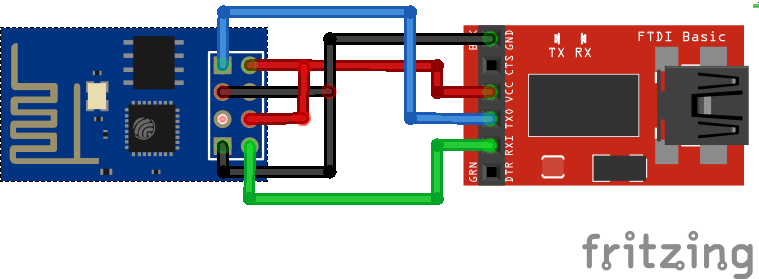
Schematics (3.3V FTDI Programmer)

And you can check this page to get an FTDI programmer at the best price.

Wiring:

  • RX -> TX
  • TX -> RX
  • CH_PD -> 3.3V
  • GPIO 0 -> GND
  • VCC -> 3.3V
  • GND -> GND

Downloading NodeMCU Flasher for Windows

After wiring your circuit, you have to download the NodeMCU flasher. It’s a .exe file that you can download using one of the following links:

You can click here to find all the information about NodeMCU flasher.

Flashing your ESP8266 using Windows

Open the flasher that you just downloaded and a window should appear (as shown in the following figure).

Press the button “Flash” and it should start the flashing process immediately (You might have to change some of the settings  on the Advanced tab). After finishing this process, it should appear a green circle with a check icon.

Do you have any questions? Leave a comment down below!

Now I recommend reading how to create a web server with an ESP8266.

Thanks for reading

Guide for TCS230/TCS3200 Color Sensor with Arduino

This post shows you how to detect colors with the Arduino using the TCS230/TCS3200 color sensor.

The TCS3200 color sensor can detect a wide variety of colors based on their wavelength. This sensor is specially useful for color recognition projects such as color matching, color sorting, test strip reading and much more.

Introduction

The TCS3200 color sensor – shown in the figure below –  uses a TAOS TCS3200 RGB sensor chip to detect color. It also contains four white LEDs that light up the object in front of it.


Specifications

Here’s the sensor specifications:

  • Power: 2.7V to 5.5V
  • Size: 28.4 x 28.4mm (1.12 x 1.12″)
  • Interface: digital TTL
  • High-resolution conversion of light intensity to frequency
  • Programmable color and full-scale output frequency
  • Communicates directly to microcontroller

How does the TCS3200 sensor work?

The TCS3200 has an array of photodiodes with 4 different filters. A photodiode is simply a semiconductor device that converts light into current. The sensor has:

  • 16 photodiodes with red filter – sensitive to red wavelength
  • 16 photodiodes with green filter – sensitive to green wavelength
  • 16 photodiodes with blue filter – sensitive to blue wavelength
  • 16 photodiodes without filter

If you take a closer look at the TCS3200 chip you can see the different filters.

By selectively choosing the photodiode filter’s readings, you’re able to detect the intensity of the different colors. The sensor has a current-to-frequency converter that converts the photodiodes’ readings into a square wave with a frequency that is proportional to the light intensity of the chosen color. This frequency is then, read by the Arduino – this is shown in the figure below.

Pinout

Here’s the sensor pinout:

Pin NameI/ODescription
GND (4)Power supply ground
OE (3)IEnable for output frequency (active low)
OUT (6)OOutput frequency 
S0, S1(1,2)IOutput frequency scaling selection inputs
S2, S3(7,8)IPhotodiode type selection inputs
VDD(5)Voltage supply

Filter selection

To select the color read by the photodiode, you use the control pins S2 and S3. As the photodiodes are connected in parallel, setting the S2 and S3 LOW and HIGH in different combinations allows you to select different photodidodes. Take a look at the table below:

Photodiode typeS2S3
RedLOWLOW
BlueLOWHIGH
No filter (clear)HIGHLOW
GreenHIGHHIGH

Frequency scaling

Pins S0 and S1 are used for scaling the output frequency. It can be scaled to the following preset values: 100%, 20% or 2%. Scaling the output frequency is useful to optimize the sensor readings for various frequency counters or microcontrollers. Take a look at the table below:

Output frequency scalingS0S1
Power downLL
2%LH
20%HL
100%HH

For the Arduino, it is common to use a frequency scaling of 20%. So, you set the S0 pin to HIGH and the S1 pin to LOW.

Color Sensing with Arduino and TCSP3200

In this example you’re going to detect colors with the Arduino and the TCSP3200 color sensor.  This sensor is not very accurate, but works fine for detecting colors in simple projects.

Parts required

Here’s the parts required for this project:

  • TCSP3200 or TCS230 color sensor 
  • Arduino UNO – read Best Arduino Starter Kits
  • Jumper wires 

Schematic

Wiring the TCSP3200 sensor to your Arduino is pretty straightforward. Simply follow the next schematic diagram.

Here’s the connections between the TCSP3200 and the Arduino:

  • S0: digital pin 4
  • S1: digital pin 5
  • VCC: 5V
  • S3: digital pin 6
  • S4: digital pin 7
  • OUT: digital pin 8

Code

You need two sketches for this project:

  1. Reading and displaying the output frequency on the serial monitor. In this part you need to write down the frequency values when you place different colors in front of the sensor.
  2. Distinguish between different colors. In this section you’ll insert the frequency values picked previously on your code, so that your sensor can distinguish between different colors. We’ll detect red, green and blue colors.

1. Reading the output frequency

Upload the following code to your Arduino board.

/*********
 Gnd_To_Vcc
  
*********/

// TCS230 or TCS3200 pins wiring to Arduino
#define S0 4
#define S1 5
#define S2 6
#define S3 7
#define sensorOut 8

// Stores frequency read by the photodiodes
int redFrequency = 0;
int greenFrequency = 0;
int blueFrequency = 0;

void setup() {
  // Setting the outputs
  pinMode(S0, OUTPUT);
  pinMode(S1, OUTPUT);
  pinMode(S2, OUTPUT);
  pinMode(S3, OUTPUT);
  
  // Setting the sensorOut as an input
  pinMode(sensorOut, INPUT);
  
  // Setting frequency scaling to 20%
  digitalWrite(S0,HIGH);
  digitalWrite(S1,LOW);
  
   // Begins serial communication 
  Serial.begin(9600);
}
void loop() {
  // Setting RED (R) filtered photodiodes to be read
  digitalWrite(S2,LOW);
  digitalWrite(S3,LOW);
  
  // Reading the output frequency
  redFrequency = pulseIn(sensorOut, LOW);
  
   // Printing the RED (R) value
  Serial.print("R = ");
  Serial.print(redFrequency);
  delay(100);
  
  // Setting GREEN (G) filtered photodiodes to be read
  digitalWrite(S2,HIGH);
  digitalWrite(S3,HIGH);
  
  // Reading the output frequency
  greenFrequency = pulseIn(sensorOut, LOW);
  
  // Printing the GREEN (G) value  
  Serial.print(" G = ");
  Serial.print(greenFrequency);
  delay(100);
 
  // Setting BLUE (B) filtered photodiodes to be read
  digitalWrite(S2,LOW);
  digitalWrite(S3,HIGH);
  
  // Reading the output frequency
  blueFrequency = pulseIn(sensorOut, LOW);
  
  // Printing the BLUE (B) value 
  Serial.print(" B = ");
  Serial.println(blueFrequency);
  delay(100);
}

Open the serial monitor at a baud rate of 9600.

Place a blue object in front of the sensor at different distances. You should save two measurements: when the object is placed far from the sensor and when the object is close to it.

Check the values displayed on the serial monitor. The blue frequency (B) should be the lowest compared to the red (R) and green (G) frequency readings – see figure below.

When we place the blue object in front of the sensor, the blue frequency (B) values oscillate between 59 and 223 (see highlighted values).

Note: you can’t use these frequency values (59 and 223) in your code, you should measure the colors for your specific object with your own color sensor. Then, save your upper and bottom frequency limits for the blue color, because you’ll need them later.

Repeat this process with a green and red objects and write down the upper and bottom frequency limits for each color.

2. Distinguish between different colors

This next sketch maps the frequency values to RGB values (that are between 0 and 255).

In the previous step when we have maximum blue we obtained a frequency of 59 and when we have blue at a higher distance we obtained 223.

So, 59 in frequency corresponds to 255 (in RGB) and 223 in frequency to 0 (in RGB). We’ll do this with the Arduino map() function. In the map() function you need to replace XX parameters with your own values.

/*********
  Gnd_To_Vcc
  
*********/

// TCS230 or TCS3200 pins wiring to Arduino
#define S0 4
#define S1 5
#define S2 6
#define S3 7
#define sensorOut 8

// Stores frequency read by the photodiodes
int redFrequency = 0;
int greenFrequency = 0;
int blueFrequency = 0;

// Stores the red. green and blue colors
int redColor = 0;
int greenColor = 0;
int blueColor = 0;

void setup() {
  // Setting the outputs
  pinMode(S0, OUTPUT);
  pinMode(S1, OUTPUT);
  pinMode(S2, OUTPUT);
  pinMode(S3, OUTPUT);
  
  // Setting the sensorOut as an input
  pinMode(sensorOut, INPUT);
  
  // Setting frequency scaling to 20%
  digitalWrite(S0,HIGH);
  digitalWrite(S1,LOW);
  
  // Begins serial communication
  Serial.begin(9600);
}

void loop() {
  // Setting RED (R) filtered photodiodes to be read
  digitalWrite(S2,LOW);
  digitalWrite(S3,LOW);
  
  // Reading the output frequency
  redFrequency = pulseIn(sensorOut, LOW);
  // Remaping the value of the RED (R) frequency from 0 to 255
  // You must replace with your own values. Here's an example: 
  // redColor = map(redFrequency, 70, 120, 255,0);
  redColor = map(redFrequency, XX, XX, 255,0);
  
  // Printing the RED (R) value
  Serial.print("R = ");
  Serial.print(redColor);
  delay(100);
  
  // Setting GREEN (G) filtered photodiodes to be read
  digitalWrite(S2,HIGH);
  digitalWrite(S3,HIGH);
  
  // Reading the output frequency
  greenFrequency = pulseIn(sensorOut, LOW);
  // Remaping the value of the GREEN (G) frequency from 0 to 255
  // You must replace with your own values. Here's an example: 
  // greenColor = map(greenFrequency, 100, 199, 255, 0);
  greenColor = map(greenFrequency, XX, XX, 255, 0);
  
  // Printing the GREEN (G) value  
  Serial.print(" G = ");
  Serial.print(greenColor);
  delay(100);
 
  // Setting BLUE (B) filtered photodiodes to be read
  digitalWrite(S2,LOW);
  digitalWrite(S3,HIGH);
  
  // Reading the output frequency
  blueFrequency = pulseIn(sensorOut, LOW);
  // Remaping the value of the BLUE (B) frequency from 0 to 255
  // You must replace with your own values. Here's an example: 
  // blueColor = map(blueFrequency, 38, 84, 255, 0);
  blueColor = map(blueFrequency, XX, XX, 255, 0);
  
  // Printing the BLUE (B) value 
  Serial.print(" B = ");
  Serial.print(blueColor);
  delay(100);

  // Checks the current detected color and prints
  // a message in the serial monitor
  if(redColor > greenColor && redColor > blueColor){
      Serial.println(" - RED detected!");
  }
  if(greenColor > redColor && greenColor > blueColor){
    Serial.println(" - GREEN detected!");
  }
  if(blueColor > redColor && blueColor > greenColor){
    Serial.println(" - BLUE detected!");
  }
}

To distinguish between different colors we have three conditions:

  • When the R is the maximum value (in RGB parameters) we know we have a red object
  • When G is the maximum value, we know we have a green object
  • When B is the maximum value, we know we have a blue object

Now, place something in front of the sensor. It should print in your serial monitor the color detected: red, green or blue.

Tip: your sensor can also detect other colors with more if statements.

Wrapping up

In this post you’ve learned how to detect colors with the TCSP3200 color sensor.

You can easily build a color sorting machine by simply adding a servo motor.

Do you have project ideas related to color sorting?

Let us know by posting a comment below.

If you like this post, you’ll probably like these posts:

Thanks for reading,

Guide to SD Card Module with Arduino

In this post we’re going to show you how to use an SD card module with Arduino to read and write files on an SD card.

For an Arduino project with the SD card module read our blog post: Arduino temperature data logger with SD card.

Introducing the SD Card module

The SD card module is specially useful for projects that require data logging.

The Arduino can create a file in an SD card to write and save data using the SD library.

There are different models from different suppliers, but they all work in a similar way, using the SPI communication protocol. The module used in this tutorial is the one shown in figure below (front and back view).

This module works with micro SD card.

Where to buy?

The SD card module is a very cheap and you can find one for approximately $1 – check prices on Maker Advisor.

Pin wiring

The table below shows how you should wire the SD card module to your Arduino

SD card module Wiring to Arduino UnoWiring to Arduino Mega
VCC3.3V or 5V (check module’s datasheet)3.3V or 5V (check module’s datasheet)
CS453
MOSI1151
CLK1352
MISO1250
GNDGNDGND

Note: different Arduino boards have different SPI pins. If you’re using another Arduino board, check the Arduino official documentation.

Preparing the SD card

The first step when using the SD card module with Arduino is formatting the SD card as FAT16 or FAT32. Follow the instructions below.

1) To format the SD card, insert it in your computer. Go to My Computer and right click on the SD card. Select Format as shown in figure below.

2) A new window pops up. Select FAT32, press Start to initialize the formatting process and follow the onscreen instructions.

Testing the SD card module

Insert the formatted SD card in the SD card module.

Connect the SD card module to the Arduino as shown in the circuit schematics below or check Pin Wiring in previous section.

Note: depending on the module you’re using, the pins may be in a different order.

Code – CardInfo

To make sure everything is wired correctly and the SD card is working properly, in the Arduino IDE window go to FileExamples > SD > CardInfo.

Upload the code to your Arduino board. Make sure you have the right board and COM port selected.

Open the Serial Monitor at a baud rate of 9600 and you should see your SD card information.

If everything is working properly you’ll see a similar message on the serial monitor.

Read and write to the SD card

The SD library provides useful functions for easily write in and read from the SD card.

To write and read from the SD card, first you need to include the SPI and SD libraries:

#include <SPI.h>
#include <SD.h>

You also have to initialize the SD card module at the Chip Select (CS) pin – in our case, pin 4.

SD.begin(4);

To open a new file in the SD card, you need to create a file object that refers to your data file. For example:

dataFile = SD.open("data.txt", FILE_WRITE);

The first parameter of this function is the name of the file, data.txt, and the FILE_WRITE ;argument enables you to read and write into the file.

This line of code creates a file called data.txt on your SD card. If the data.txt file already exists,  Arduino will open the file instead of creating another one.

To write data to the currently open file, you use:

dataFile.write(data);

In which the dataFile is the file object created previously and the data is what you want to write in the file.

You can also use the print() or println() functions to print data into the file:

dataFile.print(data);
dataFile.println(data); // followed by a new line

To read the data saved on your file:

dataFile.read();

You can only write within a file at once, so you need to close a file before proceeding to the next one. To close the data.txt file we’ve just created:

SD.close("data.txt");

The argument of this function is the file you want to close, in this case data.txt.

For a complete sketch on how to read and write, in your Arduino IDE go to FileExamples > SD > ReadWrite.

Wrapping Up

This was just a quick introduction to the SD card module with the Arduino.

Make sure you check the following blog post for a data logging project example using the SD card module with Arduino:

In that project we save temperature readings on an SD card with time stamps using the DS18B20 temperature sensor and the RTC module.

We hope you’ve found this guide useful.

Thanks for reading

Arduino – Ultrasonic Sensor with LEDs and buzzer

Hi guys,

This is my first tutorial,  I’ve just started a few months ago learning electronics (previously I’ve just knew how to program in C and Python). When I finished this project (took me about 5 hours or something) I’ve decided to share to help anyone that is starting in electronics.

What’s this project about?

Basically we have an Ultrasonic sensor that measures the distance and the LED’s bar graph will light up according to our distance from the sensor and as we get closer the buzzer beeps in a different way. This circuit can work as a parking sensor! It’s easy and cheap.

Parts Required

  • Arduino UNO – read Best Arduino Starter Kits
  • 1x 74HC595 8 Bit Shift Register
  • 1x Breadboard
  • 8x LEDs (for example: 3x red, 3x yellow, 2x green)
  • 9x 220 Ohm Resistors
  • 1x Buzzer
  • 1x Ultrasonic Sensor (for exemple: HC-SR04)
  • Jumper Wires

Schematics

Upload the Code below

/*
 * 
 * Ultrasonic Sensor with LED's bar graph and buzzer 
*/
int tonePin = 4;    //Tone - Red Jumper
int trigPin = 9;    //Trig - violet Jumper
int echoPin = 10;   //Echo - yellow Jumper
int clockPin = 11;  //IC Pin 11 - white Jumper
int latchPin = 12;  //IC Pin 12 - Blue Jumper
int dataPin = 13;   //IC Pin 14 - Green Jumper
 
byte possible_patterns[9] = {
B00000000, 
B00000001,
B00000011,
B00000111,
B00001111,
B00011111,
B00111111, 
B01111111, 
B11111111,
};
int proximity=0;
int duration;
int distance;
 
void setup() {
  //Serial Port
  Serial.begin (9600);
  
  pinMode(trigPin, OUTPUT);
  pinMode(echoPin, INPUT);
  pinMode(clockPin, OUTPUT);
  pinMode(latchPin, OUTPUT);
  pinMode(dataPin, OUTPUT);
  pinMode(tonePin, OUTPUT);
}
 
void loop() {
  digitalWrite(latchPin, LOW);
  digitalWrite(trigPin, HIGH);
  delayMicroseconds(1000);
  digitalWrite(trigPin, LOW);
  duration = pulseIn(echoPin, HIGH);
  distance = (duration/2) / 29.1;
  
  /*if (distance >= 45 || distance <= 0){
    Serial.println("Out of range");
  }
  else {
    Serial.print(distance);
    Serial.println(" cm");
  }*/
  
  proximity=map(distance, 0, 45, 8, 0);
  //Serial.println(proximity);
  
  if (proximity <= 0){
    proximity=0;
  }
  else if (proximity >= 3 && proximity <= 4){
    tone(tonePin, 200000, 200);
  }
  else if (proximity >= 5 && proximity <= 6){
     tone(tonePin,5000, 200);
  }
  else if (proximity >= 7 && proximity <= 8){
    tone(tonePin, 1000, 200);
  }
  shiftOut(dataPin, clockPin, MSBFIRST, possible_patterns[proximity]);
  digitalWrite(latchPin, HIGH);
 
  
  delay(600);
  noTone(tonePin);
}

Thanks for reading

Arduino with PIR Motion Sensor

In this project you’re going to create a simple circuit with an Arduino and PIR motion sensor that can detect movement. An LED will light up when movement is detected.

Introducing the PIR Motion Sensor

The PIR motion sensor is ideal to detect movement. PIR stand for “Passive Infrared”. Basically, the PIR motion sensor measures infrared light from objects in its field of view.

So, it can detect motion based on changes in infrared light in the environment. It is ideal to detect if a human has moved in or out of the sensor range.

The sensor in the figure above has two built-in potentiometers to adjust the delay time (the potentiometer at the left) and the sensitivity (the potentiometer at the right).

Pinout

Wiring the PIR motion sensor to an Arduino is pretty straightforward – the sensor has only 3 pins.

  • GND – connect to ground
  • OUT – connect to an Arduino digital pin
  • 5V – connect to 5V

Parts required

Here’s the required parts for this project

  • 1x PIR Motion Sensor (HC-SR501)
  • Arduino UNO – read Best Arduino Starter Kits
  • 1x LED
  • Jumper Cables

Schematics

Assemble all the parts by following the schematics below.

Code

Upload the following code.

/*  
    Arduino with PIR motion sensor
   
*/
 
int led = 13;                // the pin that the LED is atteched to
int sensor = 2;              // the pin that the sensor is atteched to
int state = LOW;             // by default, no motion detected
int val = 0;                 // variable to store the sensor status (value)

void setup() {
  pinMode(led, OUTPUT);      // initalize LED as an output
  pinMode(sensor, INPUT);    // initialize sensor as an input
  Serial.begin(9600);        // initialize serial
}

void loop(){
  val = digitalRead(sensor);   // read sensor value
  if (val == HIGH) {           // check if the sensor is HIGH
    digitalWrite(led, HIGH);   // turn LED ON
    delay(100);                // delay 100 milliseconds 
    
    if (state == LOW) {
      Serial.println("Motion detected!"); 
      state = HIGH;       // update variable state to HIGH
    }
  } 
  else {
      digitalWrite(led, LOW); // turn LED OFF
      delay(200);             // delay 200 milliseconds 
      
      if (state == HIGH){
        Serial.println("Motion stopped!");
        state = LOW;       // update variable state to LOW
    }
  }
}

Wrapping Up

This post shows a simple example on how to use the PIR motion sensor with the Arduino. Now, you can use the PIR motion sensor in more advanced projects. For example, you can build a Night Security Light project.

.

Thanks for reading

Nextion Display with ESP8266 – Touchscreen User Interface for Node-RED

This project shows how you can build a touchscreen user interface for Node-RED with the Nextion display and the ESP8266 to control your electronics appliances. The aim of this project is being able to control your home automation system through the Nextion display without the need to go to your smartphone or your computer to access your Node-RED user interface, while always having the Node-RED Dashboard updated.

Prerequisites

Other helpful resources:

Project Overview

You’ll create a physical Node-RED interface with the Nextion display to control four different outlets. Take a look at the figure below:

  • The Nextion user interface controls four different outputs.
  • ESP8266 #1 controls Outlet #1 and Outlet#2 using a 433 MHz transmitter. This ESP8266 is also connected to the Nextion display.
  • ESP8266 #2 controls two LEDs called Workbench and Top light. The idea is that you replace these two LEDs with useful outputs like a relay, or a SONOFF smart switch, for example.
  • When you turn an output ON using the Nextion display, the corresponding state is automatically updated in the Node-RED Dashboard.
  • You can also control all these outputs using the Node-RED Dashboard.

How does the project work?

The figure below illustrates how this project works in 4 steps.

Let’s imagine you want to turn Outlet #1 on.

1) When you tap the Outlet #1 ON button, the Nextion display sends information to the ESP8266 via serial communication, so that it knows this button was tapped.

2) The ESP and the Raspberry Pi communicate with each other using MQTT communication protocol.

The Raspberry Pi has the Mosquitto broker installed, that receives all the MQTT messages and sends them to the devices subscribed to a particular topic.

When you tap the ON button on the Nextion display, the ESP publishes a “true” message on the topic office/outlet1/buttonState.

3) The Outlet #1 button on the Node-RED is subscribed to this topic, and will receive that message. When it receives that message, it changes the corresponding button state to ON. When this happens, the Node-RED publishes a message on the topic office/outlet1.

4) The ESP is subscribed to this topic, so it knows Node-RED has changed the button state to ON. The ESP8266, then,  sends a 433 MHz signal using a 433 MHz transmitter to turn Outlet #1 on.

This process works similarly to control all the other outputs.

Parts Required

To complete this project, you’ll need to gather a few parts:

  • Raspberry Pi – read Best Raspberry Pi Starter kits
  • 2x ESP8266 – read Best ESP8266 Wi-Fi Development Board
  • 3.2” Nextion display basic model – read Nextion display buying guide
  • MicroSD card
  • 433 MHz RF Remote controlled sockets
  • 433 MHz transmitter/receiver
  • 2x LEDs
  • 2x 330 Ohm resistors
  • Breadboard
  • Jumper wires

Creating the Nextion User Interface

We’ve built the user interface for the 3.2” Nextion basic model. If you’re using a Nextion display with a different size you need to make some changes to the user interface to make it work for your specific model – so you need to edit the .HMI file and generate a new .TFT file.

Downloading the resources

Here’s all the resources you need to build the GUI:

  • .HMIfile (this file can be imported into the Nextion Editor to edit the GUI);
  • background image used in the user interface;
  • .TFT file (this file should be uploaded to the Nextion display, this is the file that the display runs);

Click here to download all the files.

If you want to learn how to build or customize the Nextion user interface read: Nextion Display with Arduino – Getting Started to learn how to use the Nextion Editor.

Compiling and uploading code to the Nextion display

If you’re using the 3.2” Nextion basic model, you can directly upload the .TFT file to the Nextion display

If you’re using a display with a different size, you need to make some changes to the user interface appearance. In the Nextion Editor software, go to File > Open and select the .HMI file provided. Then, make the necessary changes. You can use the Debug tool on the Nextion Editor, to preview how the interface will look when rendered.

To upload the .TFT file to the Nextion display you need a microSD card formatted as FAT32. Follow the next steps to upload the code to the Nextion display:

1. Copy the .TFT file corresponding to the final version of your user interface.

2. Paste that file in the microSD card (note: the microSD card should have been previously formatted as FAT32);

3. Insert the microSD card on the Nextion display and plug power.

4. You should see a message on the display saying the code is being uploaded.

5. When it is ready, it should display the following message:

6. Remove the power from the Nextion display, and unplug the microSD card.

7. Apply power again, and you should see the interface you’ve built in the Nextion Editor on your Nextion display.

ESP8266 #1 – Schematics

Wire an ESP8266 to the Nextion display and to the 433MHz transmitter by following the schematic in the following figure.

  • The Nextion display TX pin should be connected to the ESP8266 RX pin.
  • The Nextion display RX pin should be connected to the ESP8266 TX pin.
  • The 433 MHz transmitter data pin is connected to the ESP8266 GPIO 5 (D1 pin).
  • The 433 MHz transmitter VCC pin is connected to the ESP8266 3V3 pin.

ESP8266 #2 – Schematics

Wire two LEDs to the other ESP8266, as shown in the circuit diagram below.

  • The red LED is connected to GPIO 5 (D1 pin).
  • The green LED is connected to GPIO 4 (D2 pin).

Decoding the Sockets RF Signals

To control your sockets through 433 MHz signals, you need to decode the signals that turn the sockets on and off. Read the following post to see how to decode and send 433 MHz RF signals with the Arduino.

Code

There is a different sketch you need to upload for each ESP8266. Make sure you make the necessary changes to each code to make them work for you.

Note: Before uploading any code, you need to make sure the Nextion library for the Arduino IDE is properly configured to work with the ESP8266.

Configuring the Nextion Library for the ESP8266

Having the Nextion library installed in your Arduino IDE, you need to make some changes to make it work with your ESP8266.

1. In your Arduino libraries folder, open the ITEADLIB_Arduino_Nextion folder

2. There should be a NexConfig.h file – open that file.

3. Comment line 27, so that it stays as follows:

//#define DEBUG_SERIAL_ENABLE

4. Comment line 32:

//#define dbSerial Serial

5. Change line 37, so that you have the following:

#define nexSerial Serial

6. Save the NexConfig.h file.

7. Here’s the final result:

ESP8266 #1 – Code

Upload the following code to ESP8266 number #1. You need to make the following changes:

1. Add your SSID, password, and MQTT broker IP address

2. Add the RF codes to turn your outlets on and off. If you haven’t decoded the RF signals to turn the outlets on and off, please follow this tutorial: Decoding RF signals.

3. You might need to change the ESP8266 device name

4. You can also customize the MQTT topics that your ESP publishes or subscribes

Important: to upload code to your ESP8266, you must remove the TX and RX cables that are connected to the Nextion display. 

/*********
  Gnd_To_Vcc
  
// Loading the required libraries
#include <ESP8266WiFi.h>
#include <PubSubClient.h>
#include "Nextion.h"
#include <RCSwitch.h>

//#include <SoftwareSerial.h>
//SoftwareSerial mySerial(RX_PIN, TX_PIN); // RX, TX

// Change the credentials below, so your ESP8266 connects to your router
const char* ssid = "REPLACE_WITH_YOUR_SSID";
const char* password = "REPLACE_WITH_YOUR_PASSWORD";

// Change the variable to your Raspberry Pi IP address, so it connects to your MQTT broker
const char* mqtt_server = "REPLACE_WITH_YOUR_MQTT_BROKER_IP";
// For example: const char* mqtt_server = "192.168.1.112";

// Initialize the espClient. You should change the espClient name if you have multiple ESPs running in your home automation system
WiFiClient espClient;
PubSubClient client(espClient);

// Initialize the RC Switch component
RCSwitch mySwitch = RCSwitch();

// Declare a button object [page id:0,component id:1, component name: "b0"]
NexButton b0on = NexButton(0, 2, "b0on");
NexButton b0off = NexButton(0, 4, "b0off");
NexButton b1on = NexButton(0, 8, "b1on");
NexButton b1off = NexButton(0, 9, "b1off");
NexButton b2on = NexButton(0, 10, "b2on");
NexButton b2off = NexButton(0, 11, "b2off");
NexButton b3on = NexButton(0, 12, "b3on");
NexButton b3off = NexButton(0, 13, "b3off");

//Register a button object to the touch event list  
NexTouch *nex_listen_list[] = {
  &b0on,
  &b0off,
  &b1on,
  &b1off,
  &b2on,
  &b2off,
  &b3on,
  &b3off,
  NULL
};

// Button component push callback function 
void b0onPushCallback(void *ptr) {  
  client.publish("office/workbench/buttonState", "true");
}
void b0offPushCallback(void *ptr) {
  client.publish("office/workbench/buttonState", "false"); 
}
void b1onPushCallback(void *ptr) {
  client.publish("office/toplight/buttonState", "true");   
}
void b1offPushCallback(void *ptr) {
  client.publish("office/toplight/buttonState", "false");    
}
void b2onPushCallback(void *ptr) {
  client.publish("office/outlet1/buttonState", "true");     
}
void b2offPushCallback(void *ptr) {
  client.publish("office/outlet1/buttonState", "false");   
}
void b3onPushCallback(void *ptr) {
  client.publish("office/outlet2/buttonState", "true");   
}
void b3offPushCallback(void *ptr) {
  client.publish("office/outlet2/buttonState", "false");   
}

// Don't change the function below. 
// This function connects your ESP8266 to your router
void setup_wifi() {
  delay(10);
  // We start by connecting to a WiFi network
  //mySerial.println();
  //mySerial.print("Connecting to ");
  //mySerial.println(ssid);
  WiFi.begin(ssid, password);
  while (WiFi.status() != WL_CONNECTED) {
    delay(500);
    //mySerial.print(".");
  }
  //mySerial.println("");
  //mySerial.print("WiFi connected - ESP IP address: ");
  //mySerial.println(WiFi.localIP());
}

// This function is executed when some device publishes a message to a topic that your ESP8266 is subscribed to
// Change the function below to add logic to your program, so when a device publishes a message to a topic that 
// your ESP8266 is subscribed you can actually do something
void callback(String topic, byte* message, unsigned int length) {
  //mySerial.print("Message arrived on topic: ");
  //mySerial.print(topic);
  //mySerial.print(". Message: ");
  String messageTemp;
  
  for (int i = 0; i < length; i++) {
    //mySerial.print((char)message[i]);
    messageTemp += (char)message[i];
  }
  //mySerial.println();
  
  // Feel free to add more if statements to control more outputs with MQTT
  // If a message is received on the topic office/outlet1, you check if the message is either true or false 
  // Turns the outlet1 according to the message
  if(topic=="office/outlet1"){
      //mySerial.print("Changing Outlet 1 to ");
      if(messageTemp == "true"){
        mySwitch.send(4527445, 24);
        //mySerial.print("On");
      }
      else if(messageTemp == "false"){
        mySwitch.send(4527444, 24);
        //mySerial.print("Off");
      }
  }
  // Turns the outlet2 according to the message
  else if(topic=="office/outlet2"){
      //mySerial.print("Changing Outlet 2 to ");
      if(messageTemp == "true"){
        mySwitch.send(4539733, 24);
        //mySerial.print("On");
      }
      else if(messageTemp == "false"){
        mySwitch.send(4539732, 24);
        //mySerial.print("Off");
      }
  }
  //mySerial.println();
}

// This function reconnects your ESP8266 to your MQTT broker
// Change the function below if you want to subscribe to more topics with your ESP8266 
void reconnect() {
  // Loop until we're reconnected
  while (!client.connected()) {
    //mySerial.print("Attempting MQTT connection...");
    // Attempt to connect
    /*
     YOU MIGHT NEED TO CHANGE THIS LINE, IF YOU'RE HAVING PROBLEMS WITH MQTT MULTIPLE CONNECTIONS
     To change the ESP device ID, you will have to give a new name to the ESP8266.
     Here's how it looks:
       client.connect("ESP1_Office");
     Then, for the other ESP:
       client.connect("ESP1_Kitchen");
      That should solve your MQTT multiple connections problem
    */
    if(client.connect("ESP1_Office")) {
      //mySerial.println("connected"); 
      client.subscribe("office/outlet1");  
      client.subscribe("office/outlet2");             
    } 
    else {
      //mySerial.print("failed, rc=");
      //mySerial.print(client.state());
      //mySerial.println(" try again in 5 seconds");
      // Wait 5 seconds before retrying
      delay(5000);
    }
  }
}

void setup(void) {    
  //Set the baudrate which is for debug and communicate with Nextion screen
  nexInit();

  //Register the pop event callback function of the current button component
  b0on.attachPush(b0onPushCallback, &b0on);
  b0off.attachPush(b0offPushCallback, &b0off);
  b1on.attachPush(b1onPushCallback, &b1on);
  b1off.attachPush(b1offPushCallback, &b1off);
  b2on.attachPush(b2onPushCallback, &b2on);
  b2off.attachPush(b2offPushCallback, &b2off);
  b3on.attachPush(b3onPushCallback, &b3on);
  b3off.attachPush(b3offPushCallback, &b3off);
    
  // mySerial.begin(115200);
  
  setup_wifi();
  client.setServer(mqtt_server, 1883);
  client.setCallback(callback); 

  // Connect RF 433MHz Transmitter to GPIO 5
  mySwitch.enableTransmit(5);
    
  // SET YOUR PULSE LENGTH
   mySwitch.setPulseLength(REPLACE_WITH_YOUR_PULSE_LENGTH);
  
  // SET YOUR PROTOCOL (default is 1, will work for most outlets)
  mySwitch.setProtocol(REPLACE_WITH_YOUR_PROTOCOL);
  
  // Set number of transmission repetitions
  mySwitch.setRepeatTransmit(20);
}

void loop(void){   
  // When a push event occured every time,
  // the corresponding component[right page id and component id] in touch event list will be asked
  nexLoop(nex_listen_list);
   
  if (!client.connected()) {
    reconnect();
  }
  /*
    YOU MIGHT NEED TO CHANGE THIS LINE, IF YOU'RE HAVING PROBLEMS WITH MQTT MULTIPLE CONNECTIONS
    To change the ESP device ID, you will have to give a new name to the ESP8266.
    Here's how it looks:
      client.connect("ESP1_Office");
    Then, for the other ESP:
      client.connect("ESP1_Kitchen");
    That should solve your MQTT multiple connections problem
    */
  if(!client.loop())
    client.connect("ESP1_Office");
}

ESP8266 #2 – Code

Upload the following code to the ESP8266 number #2. Don’t forget to edit the code to add your SSID, password, and MQTT broker IP address:

/*********
  Gnd_To_Vcc
  

// Loading the required libraries
#include <ESP8266WiFi.h>
#include <PubSubClient.h>

//#include <SoftwareSerial.h>
//SoftwareSerial mySerial(RX_PIN, TX_PIN); // RX, TX

// Change the credentials below, so your ESP8266 connects to your router
const char* ssid = "REPLACE_WITH_YOUR_SSID";
const char* password = "REPLACE_WITH_YOUR_PASSWORD";

// Change the variable to your Raspberry Pi IP address, so it connects to your MQTT broker
const char* mqtt_server = "REPLACE_WITH_YOUR_MQTT_BROKER_IP";
// For example: const char* mqtt_server = "192.168.1.112";

// Initializes the espClient. You should change the espClient name if you have multiple ESPs running in your home automation system
WiFiClient espClient;
PubSubClient client(espClient);

// LED pins
const int ledPin5 = 5;
const int ledPin4 = 4;

// Don't change the function below. This function connects your ESP8266 to your router
void setup_wifi() {
  delay(10);
  // We start by connecting to a WiFi network
  //mySerial.println();
  //mySerial.print("Connecting to ");
  //mySerial.println(ssid);
  WiFi.begin(ssid, password);
  while (WiFi.status() != WL_CONNECTED) {
    delay(500);
    //mySerial.print(".");
  }
  //mySerial.println("");
  //mySerial.print("WiFi connected - ESP IP address: ");
  //mySerial.println(WiFi.localIP());
}

// This function is executed when some device publishes a message to a topic that your ESP8266 is subscribed to
// Change the function below to add logic to your program, so when a device publishes a message to a topic that 
// your ESP8266 is subscribed you can actually do something
void callback(String topic, byte* message, unsigned int length) {
  //mySerial.print("Message arrived on topic: ");
  //mySerial.print(topic);
  //mySerial.print(". Message: ");
  String messageTemp;
  
  for (int i = 0; i < length; i++) {
    //mySerial.print((char)message[i]);
    messageTemp += (char)message[i];
  }
  //mySerial.println();
  
  // Feel free to add more if statements to control more outputs with MQTT
  // If a message is received on the topic office/workbench, you check if the message is either true or false 
  // Turns the workbench according to the message
  if(topic=="office/workbench"){
      //mySerial.print("Changing Workbench to ");
      if(messageTemp == "true"){
        digitalWrite(ledPin5, HIGH);
        //mySerial.print("On");
      }
      else if(messageTemp == "false"){
        digitalWrite(ledPin5, LOW);
        //mySerial.print("Off");
      }
  }
  else if(topic=="office/toplight"){
      //mySerial.print("Changing Top Light to ");
      if(messageTemp == "true"){
        digitalWrite(ledPin4, HIGH);
        //mySerial.print("On");
      }
      else if(messageTemp == "false"){
        digitalWrite(ledPin4, LOW);
        //mySerial.print("Off");
      }
  }
  //mySerial.println();
}

// This function reconnects your ESP8266 to your MQTT broker
// Change the function below if you want to subscribe to more topics with your ESP8266 
void reconnect() {
  // Loop until we're reconnected
  while (!client.connected()) {
    //mySerial.print("Attempting MQTT connection...");
    // Attempt to connect
    /*
     YOU MIGHT NEED TO CHANGE THIS LINE, IF YOU'RE HAVING PROBLEMS WITH MQTT MULTIPLE CONNECTIONS
     To change the ESP device ID, you will have to give a new name to the ESP8266.
     Here's how it looks:
       client.connect("ESP2_Office");
     Then, for the other ESP:
       client.connect("ESP1_Kitchen");
      That should solve your MQTT multiple connections problem
    */
    if (client.connect("ESP2_Office")) {
      //mySerial.println("connected"); 
      client.subscribe("office/workbench");
      client.subscribe("office/toplight");              
    } else {
      //mySerial.print("failed, rc=");
      //mySerial.print(client.state());
      //mySerial.println(" try again in 5 seconds");
      // Wait 5 seconds before retrying
      delay(5000);
    }
  }
}

void setup(void) { 
  // Set GPIOs as Outputs   
  pinMode(ledPin5, OUTPUT);
  pinMode(ledPin4, OUTPUT);
  // mySerial.begin(115200);
  setup_wifi();
  client.setServer(mqtt_server, 1883);
  client.setCallback(callback);
}

void loop(void){   
  if (!client.connected()) {
    reconnect();
  }
  /*
   YOU MIGHT NEED TO CHANGE THIS LINE, IF YOU'RE HAVING PROBLEMS WITH MQTT MULTIPLE CONNECTIONS
   To change the ESP device ID, you will have to give a new name to the ESP8266.
   Here's how it looks:
     client.connect("ESP2_Office");
   Then, for the other ESP:
     client.connect("ESP1_Kitchen");
    That should solve your MQTT multiple connections problem
  */
  if(!client.loop())
    client.connect("ESP2_Office");
}

View raw code

Creating the Node-RED Application

Having both ESP boards with the code uploaded, it’s time to create your Node-RED flow. You should have Node-RED and Node-RED Dashboard installed on your Raspberry Pi. If not, please read: Getting Started with Node-RED dashboard to follow the instructions to install Node-RED dashboard.

Starting Node-RED

To start Node-RED, enter the following in the Terminal window:

pi@raspberry:~ $ node-red-start

To access Node-RED, open a tab in any browser on the local network and type the following:

http://Your_RPi_IP_address:1880

You should replace Your_RPi_IP_address with your Raspberry Pi IP address. If you don’t know your Raspberry Pi IP address, in the Terminal enter:

pi@raspberry:~ $ hostname -I

Creating the Node-RED Flow

You can import the Node-RED flow provided an then make changes, if needed.

To import the Node-RED flow, go the Github repository or click the figure below to see the raw file, and copy the code provided.

Next, in the Node-RED window, at the top right corner, select the menu, and go to Import  > Clipboard.

Then, paste the code provided and click Import.

Here’s the Node-RED flow you should get:

You have four different buttons to control the four different outputs. Each button is subscribed to a specific topic in which the ESP8266 #1 pusblishes messages to change the buttons’ state on Node-RED.

Each Node-RED button publishes on a topic that the ESP8266 #1 and ESP8266 #2 are subscribed to, so that they know when to change the outputs state.

Node-RED Dashboard

All widgets are grouped inside the Outputs group within the Office tab.

Accessing your Node-RED Using Interface

Go to http://Your_RPi_IP_address:1880/UI, and you should see the Node-RED user interface.

3D Printed Enclosure

To give this project a finished look, I’ve 3D printed an enclosure for the 3.2” Nextion display.

The enclosure has enough space to fit the display, the ESP8266 and the 433MHz transmitter.

You can download the .STL file for the Nextion housing for 3.5 inch. Note that for this project, I’ve used the Nextion 3.2”, so you need to resize those files to fit the Nextion 3.2” display.

The enclosure was printed using the Creality 3D CR–10 3D Printer – you can read my full review here.

Demonstration

With everything ready, you should be able to control your outputs by tapping the buttons on the Nextion display.

When you tap a button on the Nextion display, the Node-RED Dashboard updates instantly.

Watch the video at the beginning of the page, to see this project in action.

Wrapping Up

We hope you’ve found this project useful. After learning the concepts in this project, you can customize it to control practically anything you like with Node-RED using the Nextion display interface.

If you like this project, you’ll certainly like:

Thanks for reading.

Design a site like this with WordPress.com
Get started